

Notifications
When something needs your attention, such as a new booking request, a confirmed booking or a new chat message, Stayzy tells you in the bell at the top of the site, and emails you about the important things too. Press any notification to go straight to the page it’s about.
The notification bell
Section titled “The notification bell”When you’re signed in, the top bar has a bell next to the chat icon. A blinking red dot means you have unread notifications. The site checks for new ones regularly, so you don’t need to refresh.
-
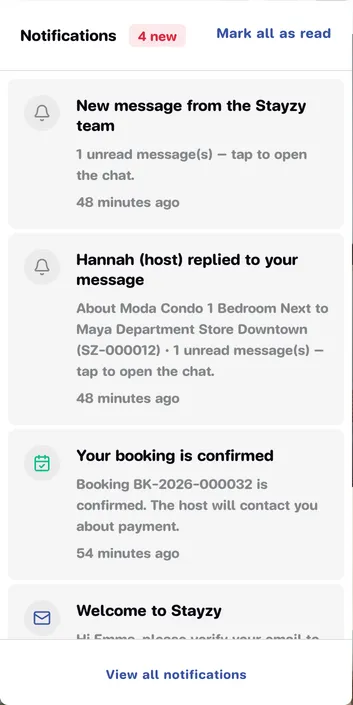
Press the bell to see your 10 latest notifications. The header shows how many are unread, such as 3 new.
-
Press a notification. It’s marked as read and you’re taken to the related page, such as the booking details or the chat with the new message.
-
To clear them all at once, press Mark all as read.
-
Press View all notifications at the bottom to open the Notifications page.
The Notifications page
Section titled “The Notifications page”The Notifications page lists everything, newest first.
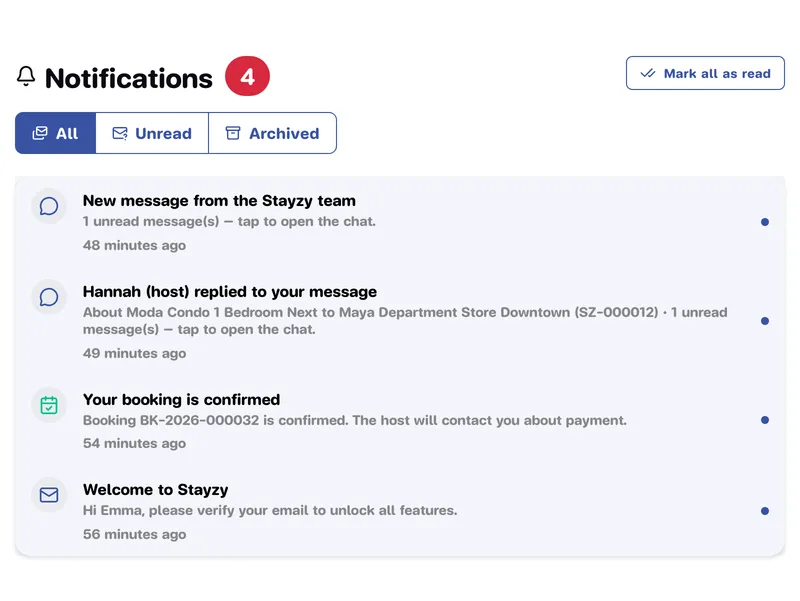
- Choose All or Unread to see only what still needs you.
- Press Mark all as read at the top right to mark everything read.
- For older items, press Load more at the bottom.
- When there’s nothing new, you see You’re all caught up.
The Archived filter is for archived notifications, but there’s currently no button to archive one, so it’s usually empty.
Notifications are shown in the language you’re using on the site. Switch language and the list reloads in that language.
For guests
Section titled “For guests”| What happened | In the bell | |
|---|---|---|
| The host accepted your request; your booking is confirmed | Your booking is confirmed | Yes |
| The host declined your request | Your booking request was declined | Yes |
| Someone else booked those dates first | Those dates have just been booked | Yes |
| The host didn’t answer your request in time | Your booking request expired | Yes |
| A booking was cancelled | Your booking has been cancelled | Yes |
| A host replied in chat | (Host’s name) (host) replied to your message | Yes |
| The Stayzy team replied in chat | New message from the Stayzy team | Yes |
Booking notifications take you to that booking’s details. See Track your request and My bookings.
For hosts
Section titled “For hosts”| What happened | In the bell | |
|---|---|---|
| A new booking request | New booking request | Yes |
| You accepted a request; the booking is confirmed | Booking confirmed | Yes |
| The guest withdrew a request before you answered | A booking request was withdrawn | No |
| A request expired because it wasn’t answered | A booking request expired | No |
| A booking was cancelled (by the guest or the Stayzy team) | A booking was cancelled | Yes |
| Your listing was approved | Your property has been approved | Yes |
| Your listing needs changes before approval | Your property needs changes before approval | Yes |
| A guest messaged you | New message from (guest’s name) | Yes |
What to do next: Answer booking requests, Listing review and approval and Reply to guests.
About your account
Section titled “About your account”| What happened | In the bell | |
|---|---|---|
| You signed up | Welcome to Stayzy | Yes (with a link to verify your email) |
| Identity verification approved | Your identity has been verified | Yes |
| Identity verification not approved | Identity verification was not approved | Yes |
| Your identity document expires soon | Your identity document expires soon | Yes |
| Your email was changed | Your email was changed | Yes |
See Verify your identity and Your profile.
Some messages come by email only and never appear in the bell: password reset links, a re-sent email verification link, and the link to confirm a new email address when you change it.
Chat emails
Section titled “Chat emails”You don’t get an email for every chat message. If you haven’t read a new message within about 5 minutes, we send one email and add a bell notification. We don’t send another until you’ve opened that chat. If you had the chat open and saw the message, there’s no email.
Notification settings
Section titled “Notification settings”There’s currently no page for turning individual kinds of notification on or off.