

Send a booking request
Booking on Stayzy works by request: you pick dates and fill in your details, then send a request for the host to consider. When the host accepts, your booking is confirmed straight away.
Before you start
Section titled “Before you start”- Sign in (if you haven’t, you’ll be asked when you book).
- Have your identity verification approved. Every booker must be verified before they can send a request, and approval is done by the team, so do it ahead of time.
1. Pick your dates and guests
Section titled “1. Pick your dates and guests”-
On the listing’s booking card, in the When row, press Change (on a phone, tap Request to Book in the bottom bar first).
-
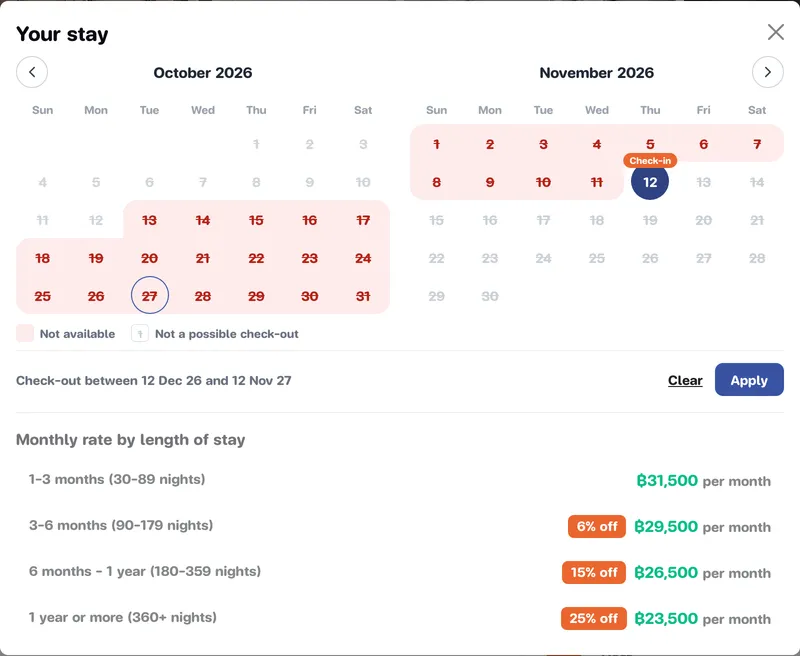
In the calendar, click your check-in day, then your check-out day, and press Apply.
-
In the Who row, press Change to set adults, children, infants and pets, then press Apply.
Calendar rules
Section titled “Calendar rules”- At least 30 nights. Nights are counted from check-in to check-out (your last night is the night before check-out). Some listings ask for more, or set a maximum; see Length of stay on the listing page.
- Once you have picked a check-in, dimmed days are Not a possible check-out: too soon for the minimum, past the maximum, or beyond another guest’s stay. A line under the calendar names the first day that works, e.g. “Check out from … onwards — 30 nights minimum”.
- Days marked Not available are already taken by another guest. They can’t be your check-out day either.
- 1 month, 2 months … badges on the calendar mark every 30 nights.
- “Today” is Thailand time. If you are abroad, the first day you can pick may differ from your own calendar.
- Each host decides how far ahead they take bookings (6, 12 or 18 months). Go past it and you’ll see e.g. “This listing takes bookings up to … — pick a check-out on or before then.”
2. Press Request to Book
Section titled “2. Press Request to Book”-
Check the price on the card (see how the price works) and press Request to Book.
-
The Confirm your request window sums up When, Nights, Who and the Estimated total. Check it and press Request to Book again. (You will not be charged at this step.)
-
Stayzy checks you can book:
- Not signed in: you go to sign-in, then come back to the listing with your dates and the confirmation open.
- Not identity-verified: you go to Identity verification. Wait for approval, then come back and book again.
-
If the dates are still free you land on Review your booking request. If not, you’ll see “Not available for these dates.” Pick other dates.
3. Fill in the review page
Section titled “3. Fill in the review page”At the top is the listing with your check-in, check-out and guests. You can still change dates or guests here; the price is recalculated.
Booker details
Section titled “Booker details”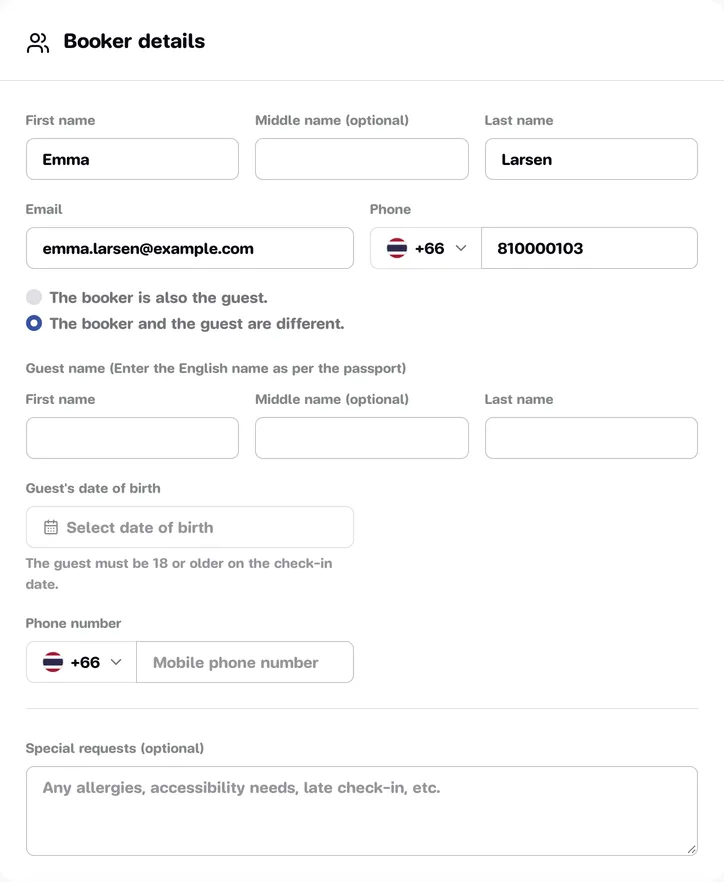
- First name, Middle name (optional), Last name, Email and Phone are filled in from your account. That email address receives every message about this booking.
- Phone: press the flag in front of the field to choose a country code (type a country or code, such as +66, in Search country or code), then type the number as usual. Don’t worry about a leading 0; it is formatted for you.
- If you have saved travelers, a Select a saved traveler list fills in the name, email and phone in one go, or choose Enter details manually.
Who is staying?
Section titled “Who is staying?”- The booker is also the guest. (the default): you are staying yourself.
- The booker and the guest are different.: you are booking for someone else, e.g. a company booking for an
employee, or a parent for a child. Then fill in the guest’s details:
- First, middle (optional) and last name, in English as per the passport.
- Guest’s date of birth: the guest must be 18 or older on the check-in date.
- The guest’s Phone number.
Special requests
Section titled “Special requests”Use Special requests (optional) to tell the host about allergies, accessibility needs, a late check-in and so on.
4. Check the price detail
Section titled “4. Check the price detail”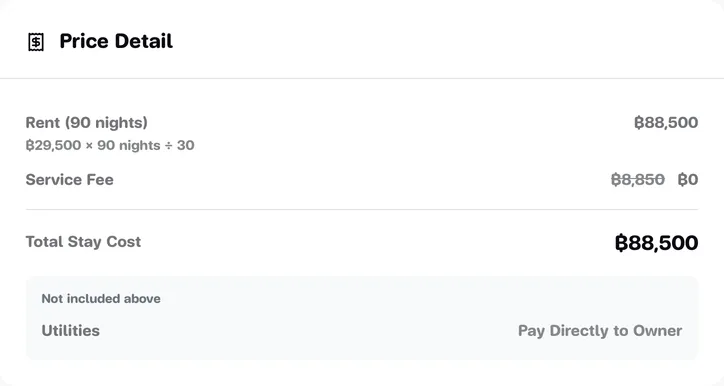
The Price Detail card shows:
| Line | Meaning |
|---|---|
| Rent (… nights) | Monthly rate × nights ÷ 30 (the formula is shown under it) |
| Service Fee | Waived for now: shown struck through next to ฿0 |
| Total Stay Cost | All the rent for this stay |
Under the total is a Not included above group. None of it is charged on the website; it is there so you know what to have ready:
- Utilities: Pay Directly to Owner.
- Security Deposit (if the host asks for one): refunded after check-out, less any applicable charges. The amount can depend on how long you stay.
- Check-out Cleaning Fee: if there is a deposit, the cleaning fee is deducted from it.
With a deposit you also get Total to prepare = Total Stay Cost + deposit (utilities excluded, and the cleaning fee is not added again since it comes out of the deposit). The Price summary card at the side shows the same figures in short.
For the deposit conditions, read the Payment and Security Deposit Terms.
5. Accept the terms and send
Section titled “5. Accept the terms and send”-
The Booking terms card lists 3 documents: the Property Usage Agreement and Property Rules, the Payment and Security Deposit Terms, and the Cancellation and Refund Policy. Click a title to read it and press Accept, or tick Agree to all required terms at once.
-
Press Send booking request.
-
The Send this booking request? window sums up dates, nights, guests and the total (plus the total to prepare when there is a deposit). Check it and press Send booking request, or Go back.
-
You’ll see “Booking request sent.” and land on your request page. Next: Track your request.
If a required field is empty you’ll see “Please fix the highlighted fields.” with the field marked.