

Calendar and closed dates
Each listing has its own Availability calendar. Use it to close dates you can’t let — repairs, or times you use the place yourself. Guests can’t pick those dates, and they don’t see why they’re closed.
Open the calendar
Section titled “Open the calendar”On My Properties, click the calendar button (Calendar) on the listing’s card.
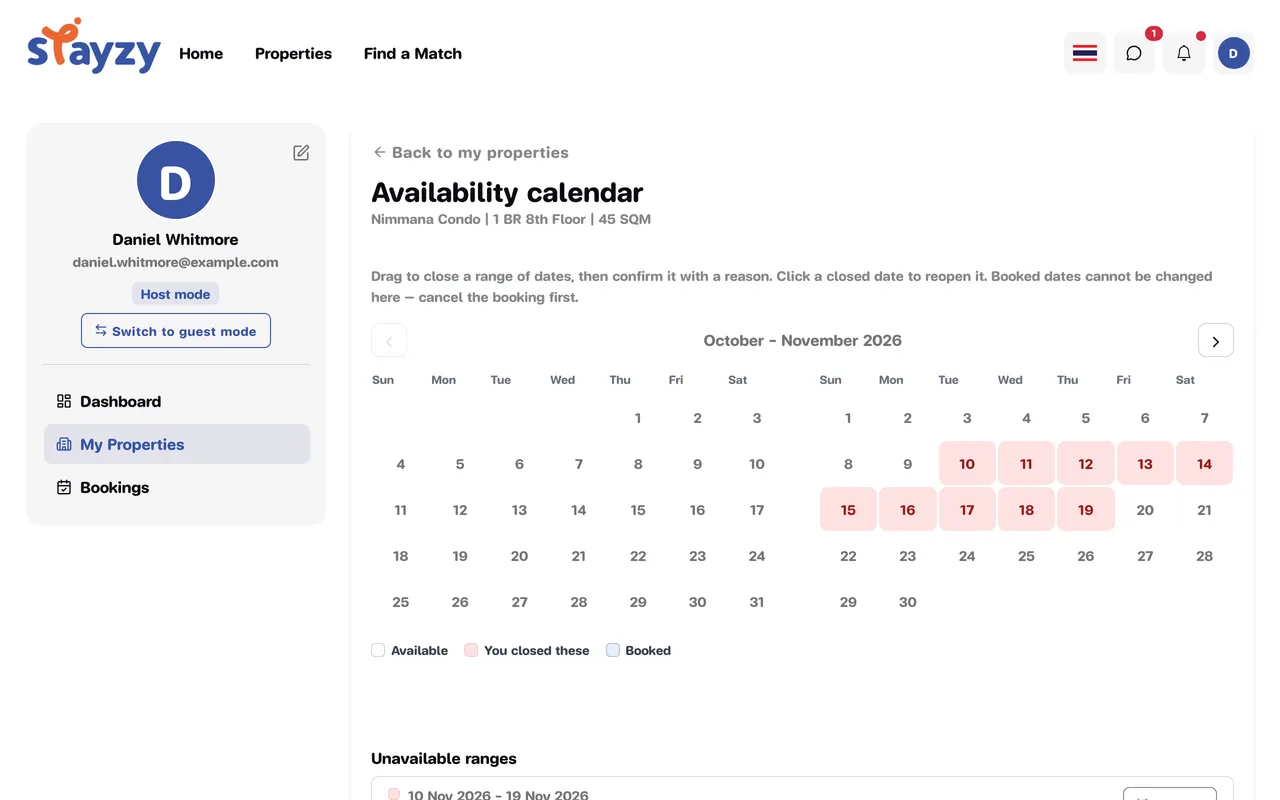
The calendar shows two months at a time; use the arrows to move between months. Days come in three colours:
- Available — open for booking
- You closed these — dates you closed yourself
- Booked — a booking is in place
Close a range of dates
Section titled “Close a range of dates”-
Drag across the dates on the calendar (click the first day, then drag to or click the last day).
-
The Close these dates window shows the range and how many days it covers.
-
Choose a Reason (required): Maintenance, Personal use or Other.
-
Add a Note (optional) for your own reference, e.g. “repainting the bedroom”.
-
Click Close dates.
Only you see the reason and note — guests just see the dates as unavailable.
Reopen closed dates
Section titled “Reopen closed dates”-
Click any day inside a closed range, or click Reopen in the list beside the calendar.
-
The Reopen these dates? window explains that the whole range reopens, not just the day you clicked.
-
Click Reopen.
To reopen only part of a range, reopen the whole range first, then close the days you still need closed.
The list of unavailable ranges
Section titled “The list of unavailable ranges”Beside the calendar, Unavailable ranges lists everything that isn’t open:
- Stays show the booking status and booking number — click it to open the booking.
- Ranges you closed show the reason, your note and a Reopen button.
When nothing is closed, you’ll see Nothing is closed.
How far ahead guests can book
Section titled “How far ahead guests can book”Besides closed dates, the Availability window (6, 12 or 18 months) under Availability in the listing editor decides how far ahead guests can book: check-in and check-out must both fall within that period from today. See Set your price.