

Chat with the Stayzy team
Have a question about a place, a booking, or want help finding the right room? You can chat with the Stayzy team right on the website. The team replies in the same chat, and if you’re not on the site we email you, so you can pick the conversation up on any device.
You need to sign in first
Section titled “You need to sign in first”Chat works only when you’re signed in. If you’re signed out, pressing the chat button shows Sign in to chat with the Stayzy team and a Sign in button.
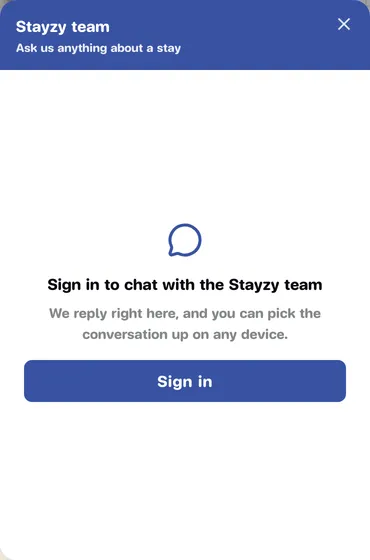
After you sign in, you come back to the same page with the chat already open. If you pressed a button that carried a message or a room card, those are still there. No account yet? See Sign up.
Start a chat with the team
Section titled “Start a chat with the team”-
Press the round blue chat button in the bottom-right corner. It’s on almost every page, except the hosting pages and the Messages page.
-
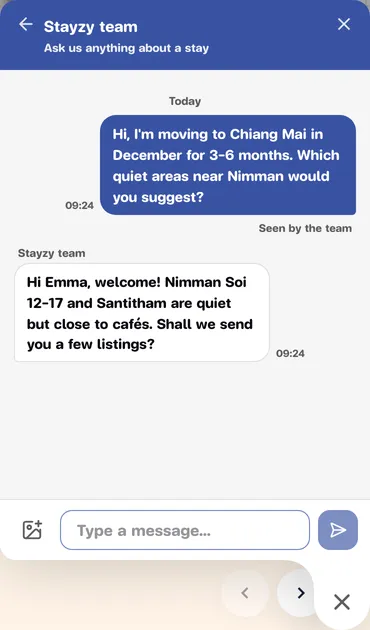
The Stayzy team chat opens. If you have chatted with a host before, you see Your chats first; pick Stayzy team.
-
Type in the Type a message… box.
-
Press the send button (the blue arrow), or press Enter on a computer.
Send a photo
Section titled “Send a photo”Want the team to see a screenshot or a photo of a room? Attach it to the chat.
-
Press Attach a photo (the picture icon left of the text box).
-
Pick a photo and wait until Uploading photo… disappears.
-
Add a message if you like, then press send.
- JPEG, PNG or WebP photos, up to 10 MB.
- Changed your mind? Press Remove photo (the X next to it).
- Tap a photo in the chat to see it full size.
Message status
Section titled “Message status”Under your latest message you’ll see its status:
- Sending… the message is on its way.
- Sent the team has it but hasn’t opened it yet.
- Seen by the team the team has read it.
If a message fails, you see why, with Retry and Remove buttons. If your connection drops for a moment, a bar says Reconnecting… messages you send now will still go through, and you can keep typing. For older messages, scroll up or press Show earlier messages.
Other ways to reach the team
Section titled “Other ways to reach the team”- Home page: in the Tell us: box, describe what you need (budget, location, dates, guests) and press Message the team. Your text lands in the chat’s message box; check it and press send yourself.
- Match: if no room fits, press Chat with us for help. See Find a room with Match.
- If you pick a room in the Match results and press Message this host, you talk to that room’s host instead. See Chat with a host.
All your chats in Messages
Section titled “All your chats in Messages”When you’re signed in, the top bar has a chat icon next to the notification bell. The red number is how many messages you haven’t read. The icon opens the Messages page, and it is the only way there (no other menu links to it).
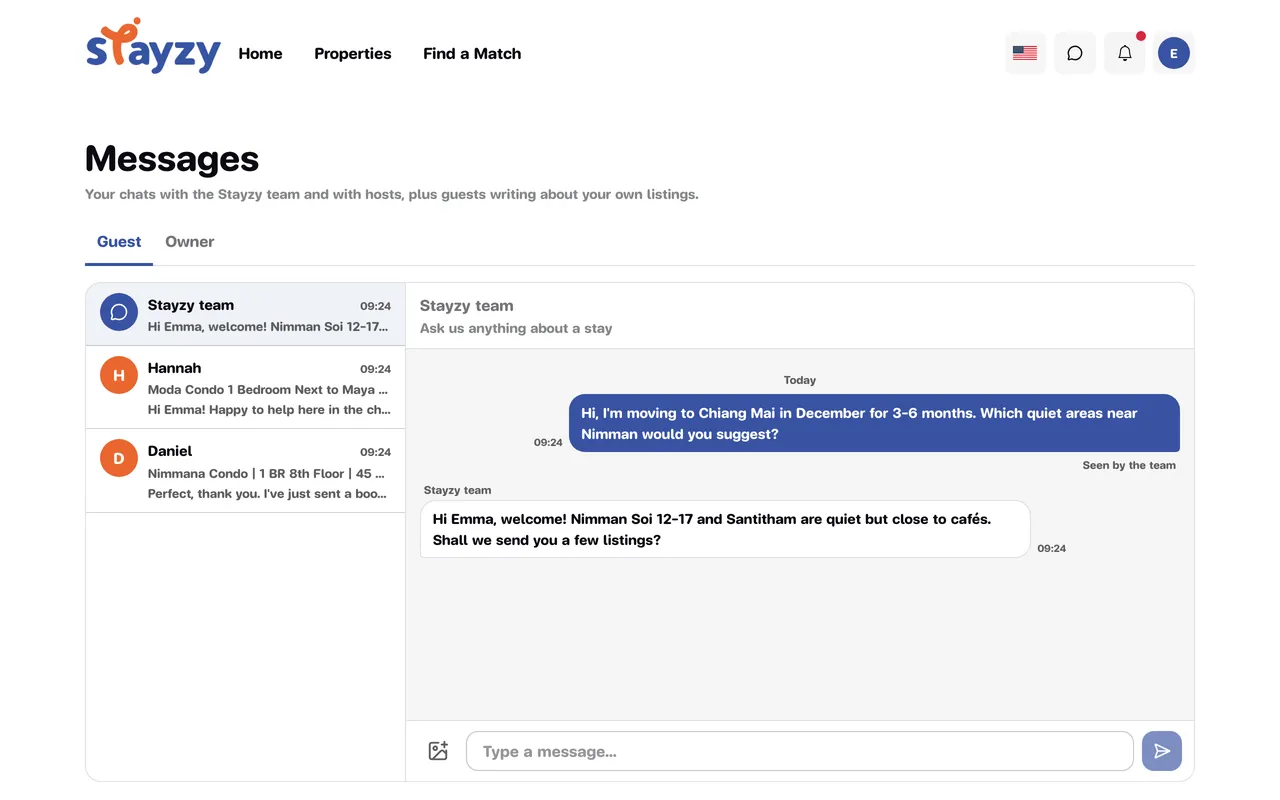
- The Guest tab holds the chats you have as a guest: with the Stayzy team and with hosts.
- The Owner tab is for hosts: guests writing about your listings. See Reply to guests.
- Pick a chat on the left to read and reply. On a phone you see the list first; tap a chat to open it and use the back arrow to return.
When the team replies
Section titled “When the team replies”If the chat is open, the reply appears right away. If not, and you haven’t read the new message within about 5 minutes, we send you one email and add a New message from the Stayzy team notification to the bell. Pressing it opens that chat. See Notifications.