

Identity verification
Before you can send a booking request, or list a property of your own, Stayzy needs to confirm who you are with a real identity document, so that guests and hosts can both trust the other side exists. You verify once per person: if you are both a guest and a host, the same verification covers both.
What you need
Section titled “What you need”- A Thai national ID card or a Passport that has not expired.
- One photo of the document: a JPEG, PNG or WebP file up to 8 MB.
- The expiry date printed on the document.
Send your document
Section titled “Send your document”-
Open the profile menu at the top right, choose My Profile, then Identity verification in the left-hand menu.
-
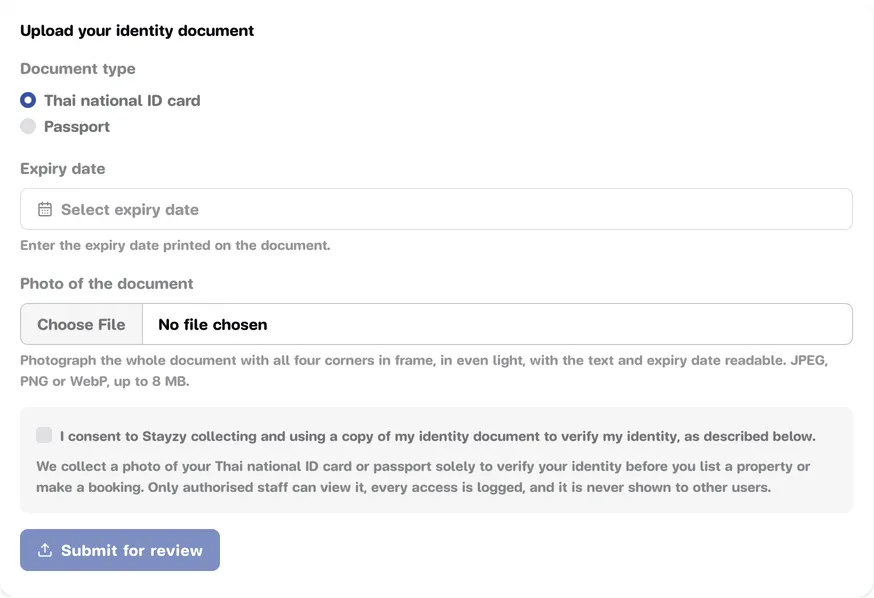
Under Document type, choose Thai national ID card or Passport.
-
Under Expiry date, pick the date printed on the document. It must be in the future.
-
Under Photo of the document, choose the photo. A preview appears so you can check it.
-
Read the consent text and tick I consent to Stayzy collecting and using a copy of my identity document to verify my identity, as described below.
-
Press Submit for review.
-
In the Submit this document? window, check once more that the photo is clear and the expiry date matches the document, then press Submit for review.
Taking a photo that passes
Section titled “Taking a photo that passes”- Get the whole document in frame, all four corners.
- Use even light, with no glare over the text.
- The text and the expiry date must be readable.
Photos from an iPhone
Section titled “Photos from an iPhone”iPhones save photos as HEIC, which some browsers cannot read. If you see Your browser could not read this photo., do one of these:
- Open this page in Safari, which can read HEIC photos.
- Change the camera setting: go to Settings → Camera → Formats, choose Most Compatible, then take the photo again.
- Convert the photo to JPEG before uploading it.
Review status
Section titled “Review status”| What the page shows | What it means |
|---|---|
| Your document is under review | Sent and waiting for our team, usually within one business day. You cannot send another document meanwhile. |
| Your identity is verified | Approved. You can book and list straight away. The message says the date your verification is valid until. |
| Your document was not approved | Not approved. Our team’s reason is shown under the heading; fix it and send again. |
When our team has checked your document, we let you know by email and in the notification bell. See Notifications.

Send again after a rejection
Section titled “Send again after a rejection”-
Read the reason after Reason: in the Your document was not approved box.
-
Press Submit a new document. The upload form opens again.
-
Take a new photo following the tips and send it as before.
Verification expires with the document
Section titled “Verification expires with the document”Your verification is valid until the expiry date of the document you sent. After that date you cannot send booking requests, create a listing or submit a listing for review until you verify again. We remind you before the document expires.
If you already have a new card, send it now; there is no need to wait for the old one to expire. Once you are verified, the page still shows the Upload your identity document form for a new document, and your current verification keeps working while our team checks the new one.
How your document is kept private
Section titled “How your document is kept private”- Your document is stored in encrypted, non-public storage.
- Only authorised Stayzy staff can view it, and every access is logged.
- Hosts and other users never see your document.
- We use the photo only to verify your identity, under the Sensitive Data Processing policy.
You can review the consents you have given under Privacy and your data.