

Become a host
You don’t need a separate account to become a host on Stayzy. The account you book with can also list places for rent. There are only two things to do: switch to host mode, and get your identity verified before you create your first listing.
Switch to host mode
Section titled “Switch to host mode”-
Sign in at stayzyliving.com.
-
Click your profile picture in the top-right corner and choose Owner.
Or, if you are on your profile page, click Switch to host mode under your name.
-
You’ll see a Host mode badge under your name, and the menu on the left changes to the host menu.
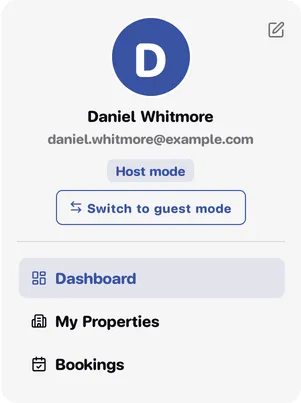
To go back to booking as a guest, click Switch to guest mode in the same place. For the difference between the two modes, see Guest and host mode.
Verify your identity before you list
Section titled “Verify your identity before you list”Stayzy requires every host to verify their identity with a Thai ID card or a passport before creating a listing. You verify once per account, and it covers both listing and booking.
If you haven’t verified yet, the My Properties page shows a notice at the top — Verify your identity — with a Verify now button.

The notice comes in three versions:
- Verify your identity — you haven’t sent a document yet. Click the button to upload one.
- Your document is under review — sent and waiting for our team. You can list as soon as it is approved.
- Your document was not approved — you need to send a new photo. Click Verify now to try again.
Once you are verified, the notice disappears.
If you click Add Property before you are verified, you are taken to the identity verification page first, so you don’t fill in the whole listing only to find you can’t submit it. For how to send your document, see Identity verification.
What’s in host mode
Section titled “What’s in host mode”The host menu has three items:
| Menu | What it’s for |
|---|---|
| Dashboard | An overview of your listings, bookings and upcoming guests. See Host dashboard. |
| My Properties | Create, edit, hide or delete listings, and open each listing’s calendar. See Manage your listings. |
| Bookings | Answer booking requests, see all bookings, check guests in and out. See Answer booking requests. |
Chat with guests isn’t in this menu — it’s behind the chat icon in the site’s top bar. See Chat for hosts.
Next steps
Section titled “Next steps”- Create a listing step by step.
- Set your price per month, with discounts for longer stays.
- Wait for review and approval by our team.