

Create a listing
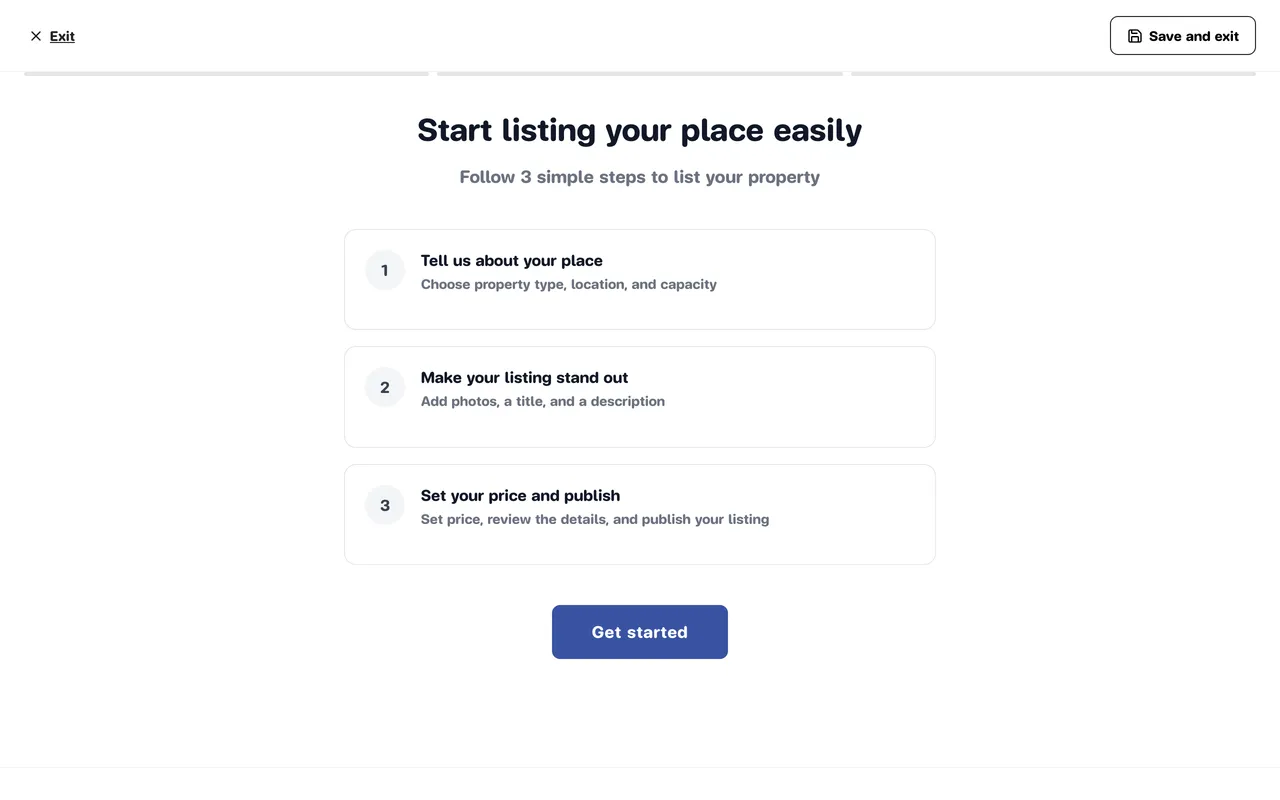
You create a new listing in a step-by-step flow of 12 screens, grouped into three phases: tell us about your place, make it stand out, and set your price and publish. The bar at the top shows which phase you are in. You need to be identity-verified before you start (see Become a host).
Start a listing
Section titled “Start a listing”-
Switch to host mode and open My Properties.
-
Click Add Property (if you have no listings yet, the button is called Create Property).
-
The first screen summarises the three phases. Click Get started.
-
Fill in each screen and click Next. To go back and change something, click Back. Next stays disabled until the required fields on that screen are filled in.
All the steps
Section titled “All the steps”1–2. Overview and “Tell us about your place”
Section titled “1–2. Overview and “Tell us about your place””Two introduction screens — nothing to fill in.
3. Property type
Section titled “3. Property type”Pick the type that fits your place best, for example a condo, a house, a townhouse or land. The type decides which questions the later screens ask.
4. Location
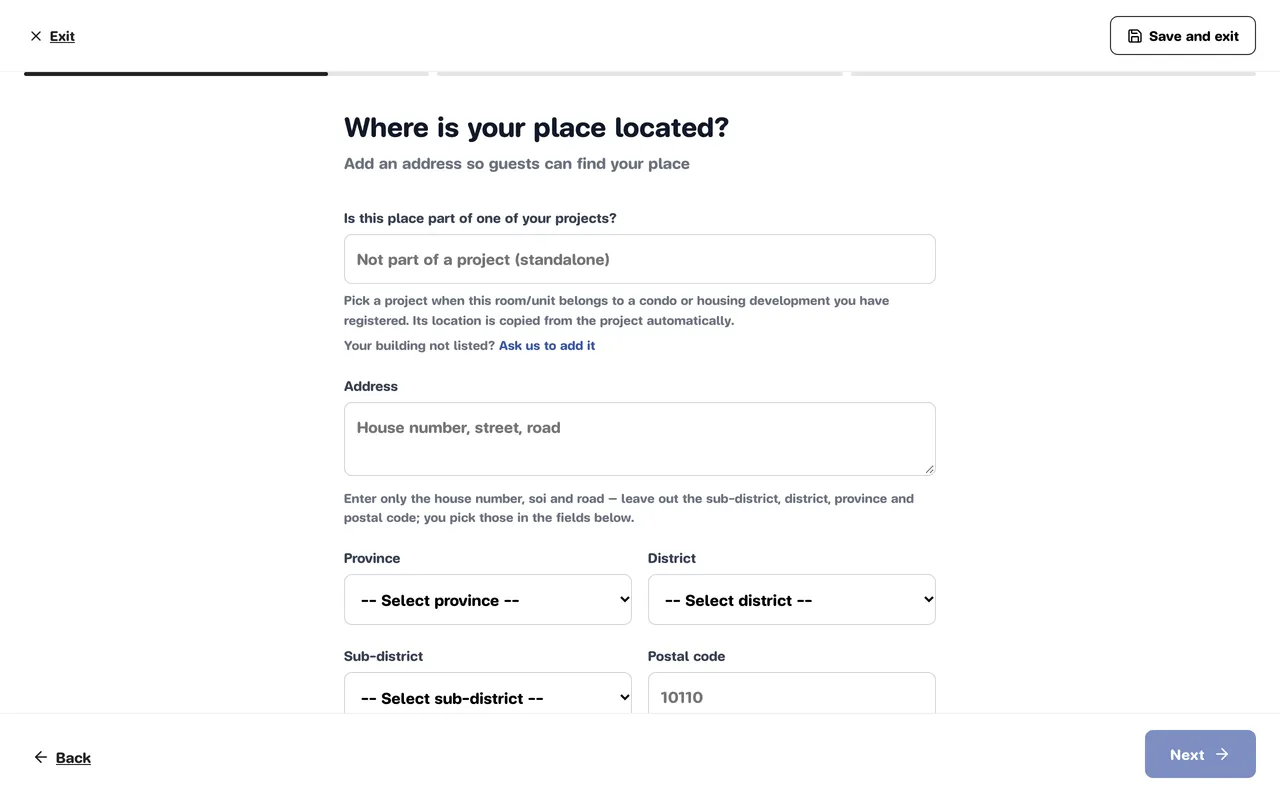
Section titled “4. Location”- Is this place part of one of your projects? — if your place is a room or unit in a condo or housing development on the list, type its name and pick it. The project’s address and map pin are copied in, and the address fields are locked, because every unit in a project shares one location. If it isn’t part of a project, leave it as Not part of a project (standalone). Can’t find your building? Click Ask us to add it. This field only appears when there are projects to choose from.
- Address — house number, soi and road only.
- Province, District, Sub-district — pick from the lists; the Postal code is filled in for you.
- Pin your place on the map — optional, but worth doing: guests browsing the map only see places that have a pin.
5. Guests and space
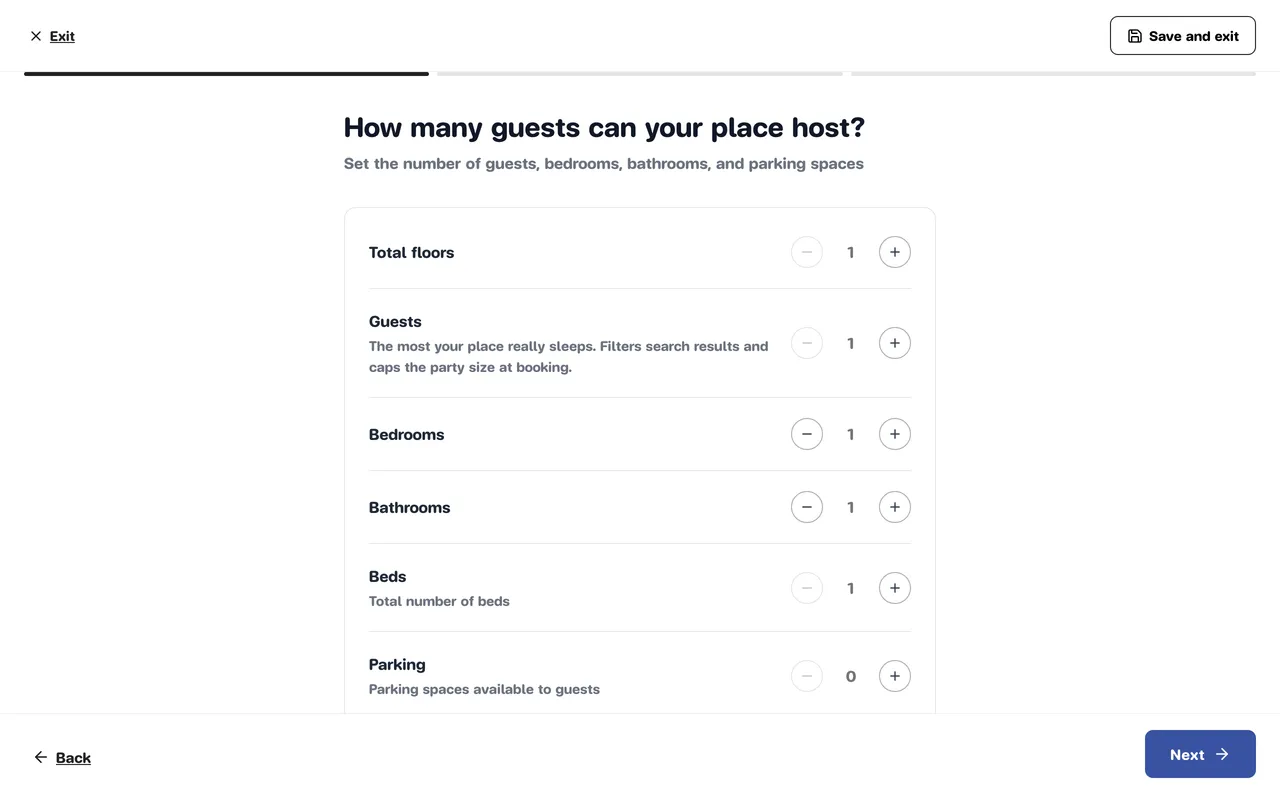
Section titled “5. Guests and space”Use the + and − buttons. Which questions you see depends on the property type.
- Total floors — how many floors the building or house has. If you picked a project that records its height, the number is locked with the note Set by the project.
- Unit floor (for units in a building) — only asked for units in a building, such as a condo or apartment.
- Guests — the most your place really sleeps. It filters search results and caps the party size at booking.
- Bedrooms, Bathrooms, Beds, Parking
- Usable area (m²) and/or Land area (sq. wah) — a condo is asked for usable area only, a house for both, land for land area only.
If you chose land, there are no questions about floors, rooms, beds or guests — only parking and land area.
6–7. Make it stand out, and amenities
Section titled “6–7. Make it stand out, and amenities”Screen 6 introduces the second phase. On screen 7, tick the amenities your place really has. They affect where you rank in search, so tick only what’s really there — guests will expect it at check-in.
8. Photos
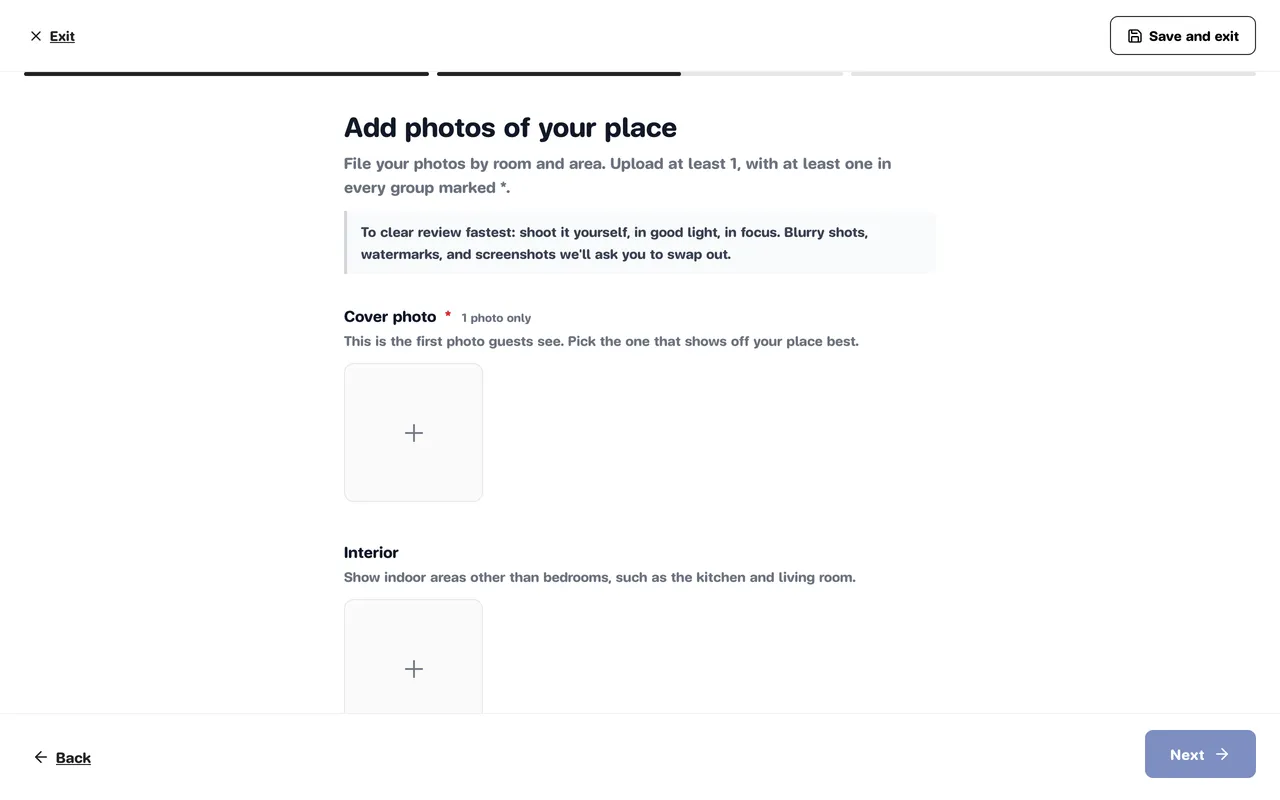
Section titled “8. Photos”Photos are filed into groups by room and area: Cover photo, Bedroom 1 and so on, Bathroom 1 and so on, Interior, Exterior, Amenities and Additional photos. The number of bedroom and bathroom groups comes from the counts on screen 5 (up to 3 of each).
- Click Add photo in the group you want.
- At the moment you need at least 1 photo: the Cover photo (the group marked *). The cover holds one photo only, and it’s the first thing guests see.
- Move a photo to another group with Move to, and reorder photos within a group.
- Photos are resized automatically before upload.
9. Title
Section titled “9. Title”Name your listing in up to 50 characters — location, a highlight, the number of bedrooms.
10. Description
Section titled “10. Description”Tell guests what makes your place special, in up to 500 characters. You can add more detail later in the listing editor.
11. Set price and publish
Section titled “11. Set price and publish”An introduction to the last phase.
12. Price
Section titled “12. Price”Set your full monthly price, long-stay discounts, security deposit and cleaning fee. See Set your price.
Type in Thai or English
Section titled “Type in Thai or English”Text fields such as the address, title and description are single fields — type in Thai or in English. After you submit, Stayzy translates the other language automatically, and our team checks the translation during review. If you change the text later, the old translation is cleared and redone on your next submission.
Submit your listing
Section titled “Submit your listing”On the price screen (the last one), click Create listing. Your listing and photos are saved and sent to our team for review straight away. It shows as Pending Approval on My Properties. See Review and approval.
Save and finish later
Section titled “Save and finish later”- Save and exit (top right) — saves what you’ve entered, photos included, to your account as a Draft, and takes you back to My Properties. You carry on in the listing editor (the edit button on the draft’s card), not in the step-by-step flow. See Edit a listing.
- Exit (top left) — leaves without saving. You’ll be asked to confirm: Leave without saving discards your entries, Stay takes you back.