
Manage your listings
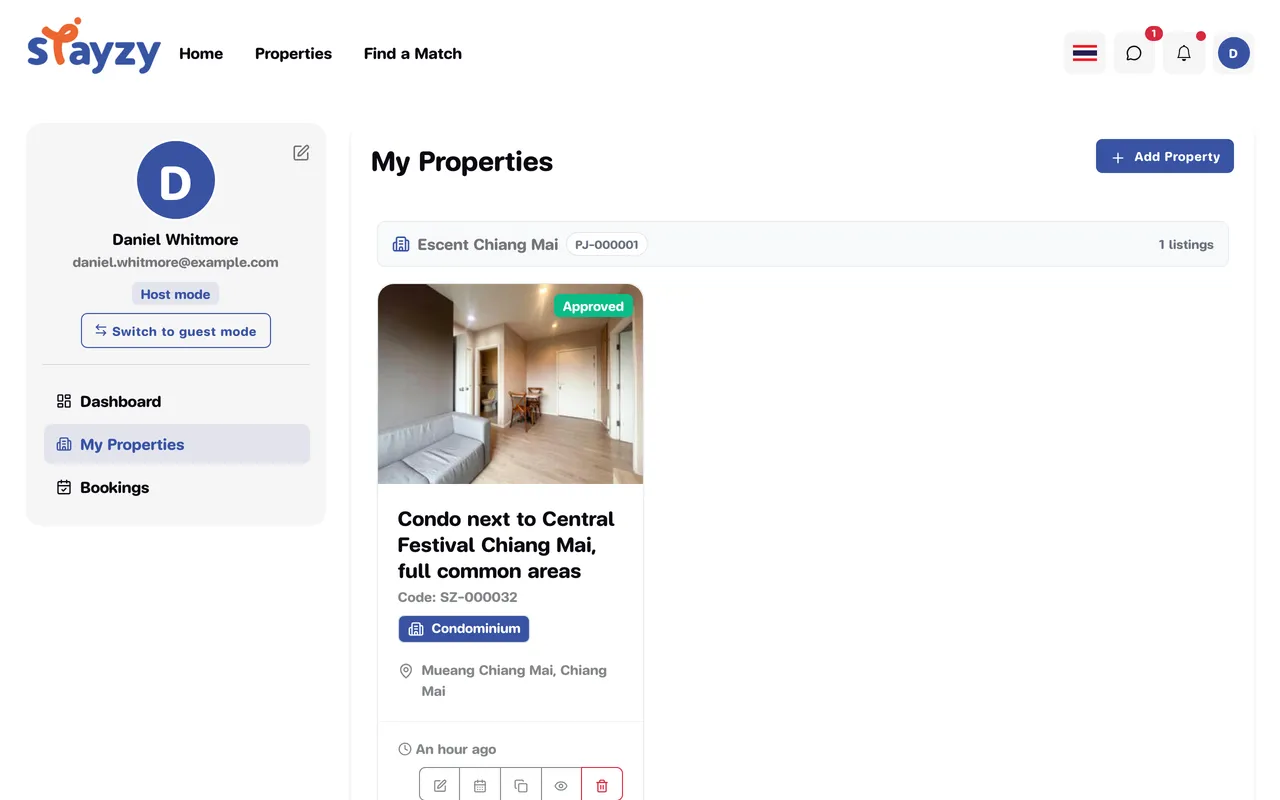
The My Properties page (menu My Properties) shows each of your listings as a card: photo, name, code, property type, location, status and when it was last updated, with management buttons along the bottom.
Grouped by project
Section titled “Grouped by project”If some of your listings belong to a project (for example several rooms in one condo), they’re grouped under the project’s name, with its code and how many of your listings it holds. Listings outside any project come last, under Standalone listings. If none of your listings is in a project, the cards are simply shown in a grid.
The buttons on a card
Section titled “The buttons on a card”The buttons at the bottom of a card are icons — hover over one to see its name.
| Button | What it does |
|---|---|
| Pencil — Edit | Opens the listing editor. See Edit a listing. |
| Calendar — Calendar | Opens this listing’s availability calendar. See Calendar and closed dates. |
| Two sheets — Create a new listing from this one | Copies the listing into a new draft |
| Eye — Hide from guests / Show to guests | Hides or shows the listing (Approved listings only) |
| Bin — Delete | Deletes the listing for good |
Copy a listing
Section titled “Copy a listing”Handy if you have several similar units, such as rooms in the same building.
-
Click Create a new listing from this one on the original card.
-
The confirmation explains that everything, photos included, is copied into a new draft. Click Copy.
-
You land in the editor of the new listing, whose name ends in “(copy)”. Change only what differs — name, unit number, floor, price — and submit it for approval.
The original is untouched, and the copy goes through review like any new listing (you need to be identity-verified).
Hide a listing for a while
Section titled “Hide a listing for a while”Use this when you don’t want bookings for a period — during renovation, or while someone rents it outside Stayzy.
-
Click the eye button (Hide from guests) on an Approved card.
-
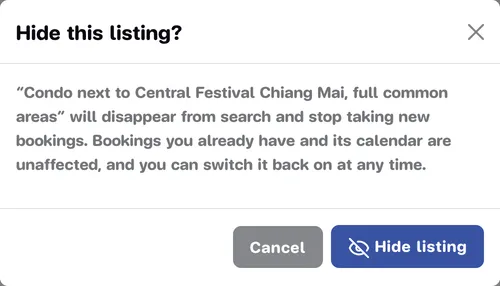
Confirm with Hide listing in the Hide this listing? window.
-
The card’s photo fades and a grey Hidden badge appears in its top-left corner.
A hidden listing disappears from search and can’t take new bookings. Bookings you already have and its calendar are unaffected, and no new review is needed. To bring it back, click the eye button again (Show to guests) — it’s back straight away, without a confirmation.
Delete a listing
Section titled “Delete a listing”-
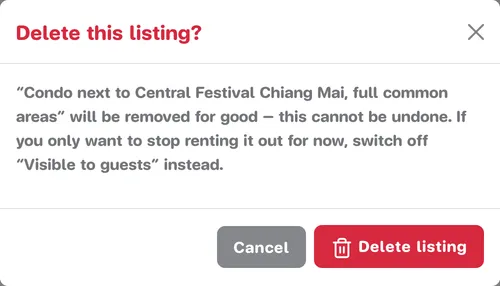
Click the bin button (Delete).
-
The Delete this listing? window warns that this is permanent and can’t be undone. If you’re sure, click Delete listing.