

My bookings
Every request and booking you make is on My Bookings: those waiting for the host, confirmed ones, and those that were cancelled or are over. Open it from the account menu in guest mode, or go to stayzyliving.com/en/user/bookings.
The list
Section titled “The list”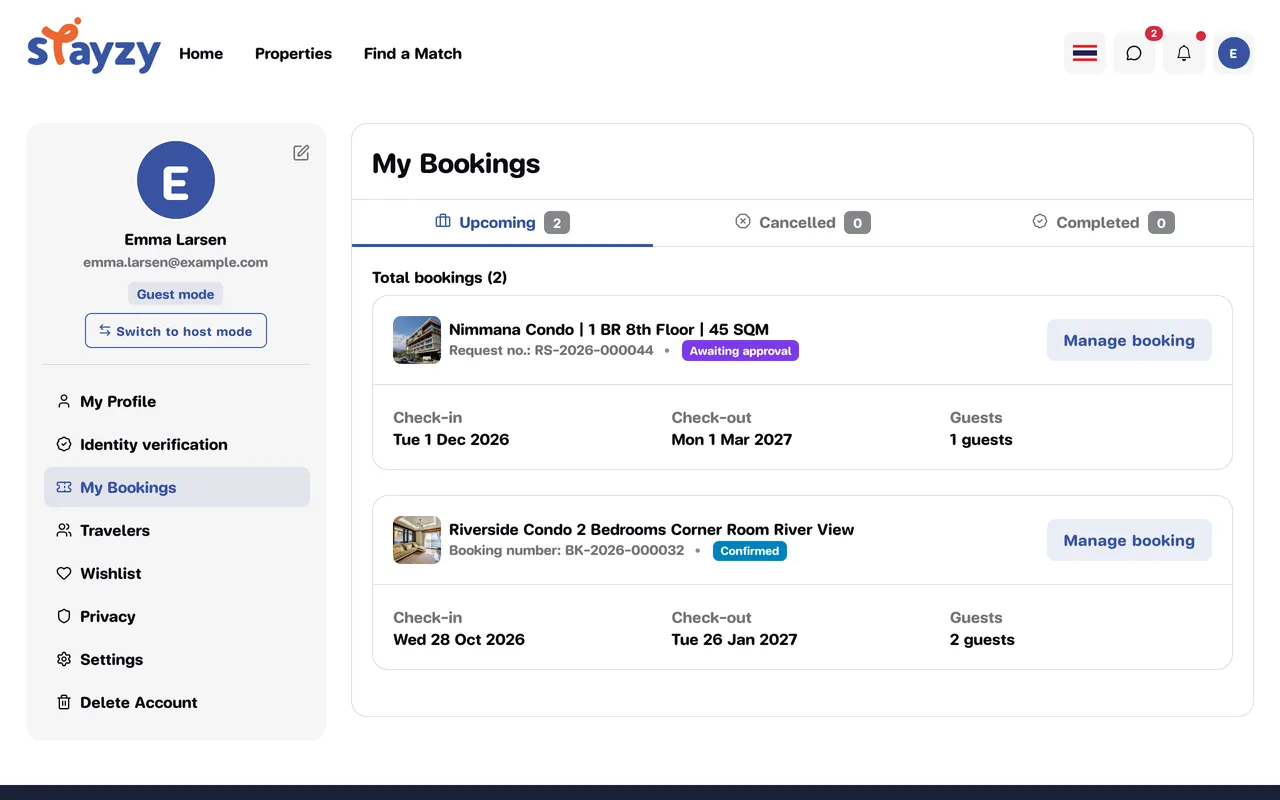
The list has 3 tabs; the number next to each tab is how many items it holds.
| Tab | What’s in it |
|---|---|
| Upcoming | Requests waiting for the host, confirmed bookings, and stays in progress |
| Cancelled | Cancelled bookings, declined requests and expired requests |
| Completed | Stays that are over |
Each card shows the place, its reference number, the status, check-in, check-out and number of guests. Press Manage booking to open it.
Request number vs booking number
Section titled “Request number vs booking number”- Request no. starts with
RS-: the number of a request that is not confirmed yet. - Booking number starts with
BK-: issued when the host accepts the request.
Cards and the detail page show the booking number once there is one, and the request number until then. When you contact the team or the host, quote whichever number is shown.
What the statuses mean
Section titled “What the statuses mean”| Status | Meaning |
|---|---|
| Awaiting approval | Request sent, waiting for the host (Track your request) |
| Confirmed | The host accepted; your booking is confirmed |
| Checked-in | The host has recorded your check-in |
| Completed | Checked out; the stay is over |
| Cancelled | The booking was cancelled, or you withdrew the request |
| Declined | The host declined the request, or the dates were booked by someone else |
| Expired | The host didn’t answer the request in time |
The booking page
Section titled “The booking page”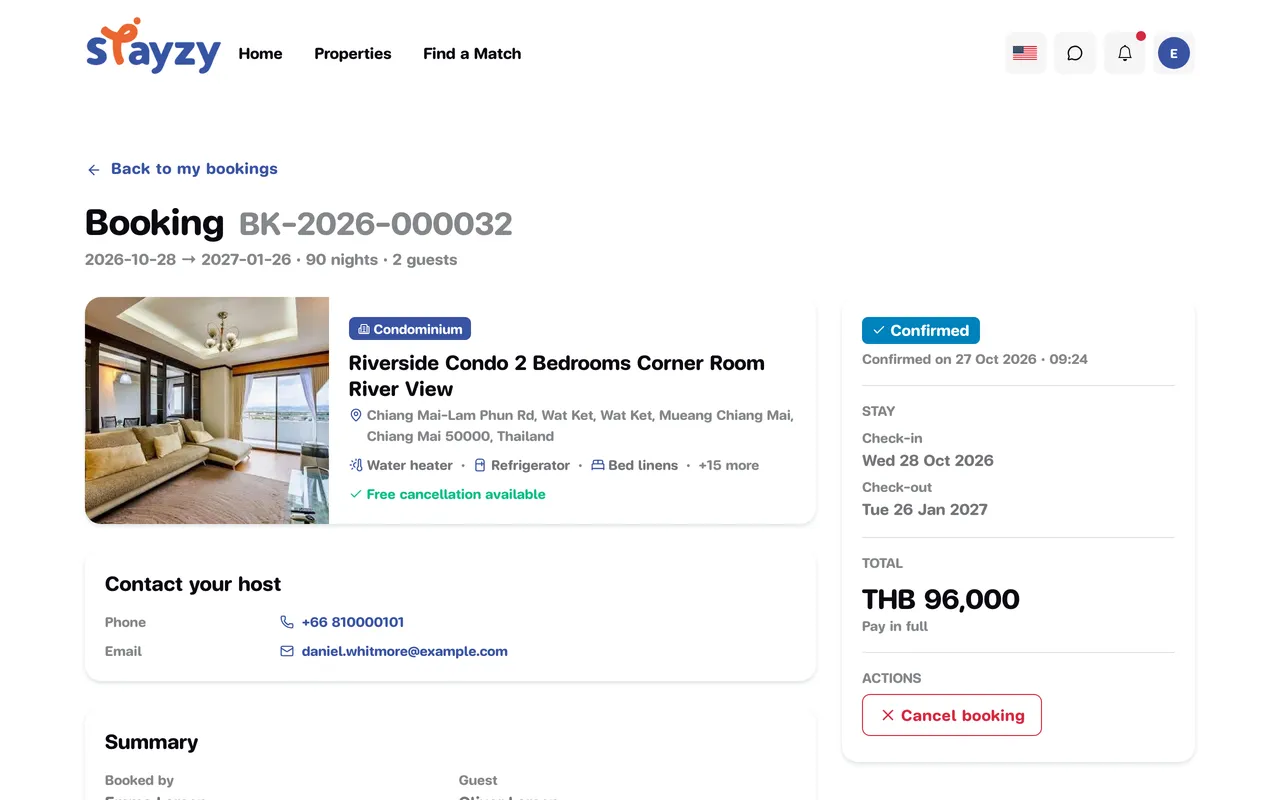
- The property at the top.
- Contact your host: when the host’s phone and email appear is explained in Contact your host.
- Summary: the booker’s name and email. If you booked for someone else, it shows Booked by and Guest separately (with the guest’s date of birth, age on check-in day and phone), plus when it was created.
- State history: open it to see each status change and when it happened.
- The card at the side shows the status, a date (e.g. “Confirmed on …”), Stay, Total and the buttons under Actions.
Cancel a confirmed booking
Section titled “Cancel a confirmed booking”-
Open the booking from My Bookings and press Manage booking.
-
Under Actions, press Cancel booking.
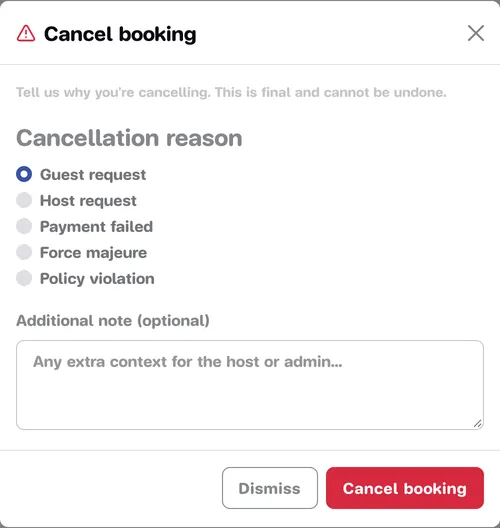
-
Choose a Cancellation reason (if you are the one cancelling, choose Guest request).
-
Add an Additional note (optional) for the host or the team.
-
Press Cancel booking to confirm, or Dismiss if you change your mind.
The booking then moves to the Cancelled tab and shows the reason you picked.
If the request is still waiting for the host, you’ll see Withdraw request instead; see Track your request.