

Saved travelers
If you often book for someone else, such as family or a colleague, you can save their name, email and phone number on the Travelers page. Next time you send a booking request you pick them from the list instead of typing everything again.
Add a traveler
Section titled “Add a traveler”-
Open the profile menu at the top right, choose My Profile, then Travelers in the left-hand menu.
-
Press Add new traveler.
-
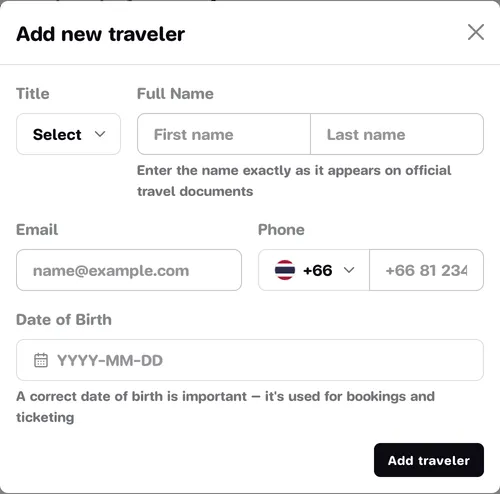
Fill in the Add new traveler window:
- Title, picked from the list.
- Full Name: both first and last name are required. Enter them exactly as on the person’s travel document.
- Email and Phone are optional, but must be valid if you fill them in.
- Date of Birth is optional.
-
Press Add traveler.
Edit or remove a traveler
Section titled “Edit or remove a traveler”Each traveler is a card on the Traveler Information page.
- Edit: change the details in the card and press Save on that card.
- Remove: press Remove on the card’s header, then Remove traveler in the confirmation window.
Removing a traveler does not affect requests or bookings you have already sent.
Use them when you request a booking
Section titled “Use them when you request a booking”Once you have at least one saved traveler, the booking request page shows a Select a saved traveler box at the top of the Booker details card.
-
On the booking request page, open Select a saved traveler in the Booker details card.
-
Choose a traveler. Their first name, last name, email and phone number are filled into the booker details.
-
Check and adjust anything before you send. To type the details yourself, choose Enter details manually.
See the full booking steps in Request to book.