

Profile and settings
My Profile holds your personal details. Your name and phone number from here are filled in for you when you send a booking request, and hosts see your name, so keep them matching your real documents. Open it from the profile menu at the top right and choose My Profile.
Profile completeness
Section titled “Profile completeness”The Complete your profile card at the top shows, as a percentage, how much of your profile is filled in: first name, last name, phone number, date of birth, gender, nationality, address and profile picture. Under the bar it names the next thing missing, and shows Email verified and Phone added badges once those are done.
Confirm your email
Section titled “Confirm your email”If you never clicked the confirmation link from sign-up, a box at the very top says Email not verified. Press Resend verification email and open the link in the new email within 24 hours. If you press it too often, you are asked to wait a moment before sending again.
Edit your personal details
Section titled “Edit your personal details”-
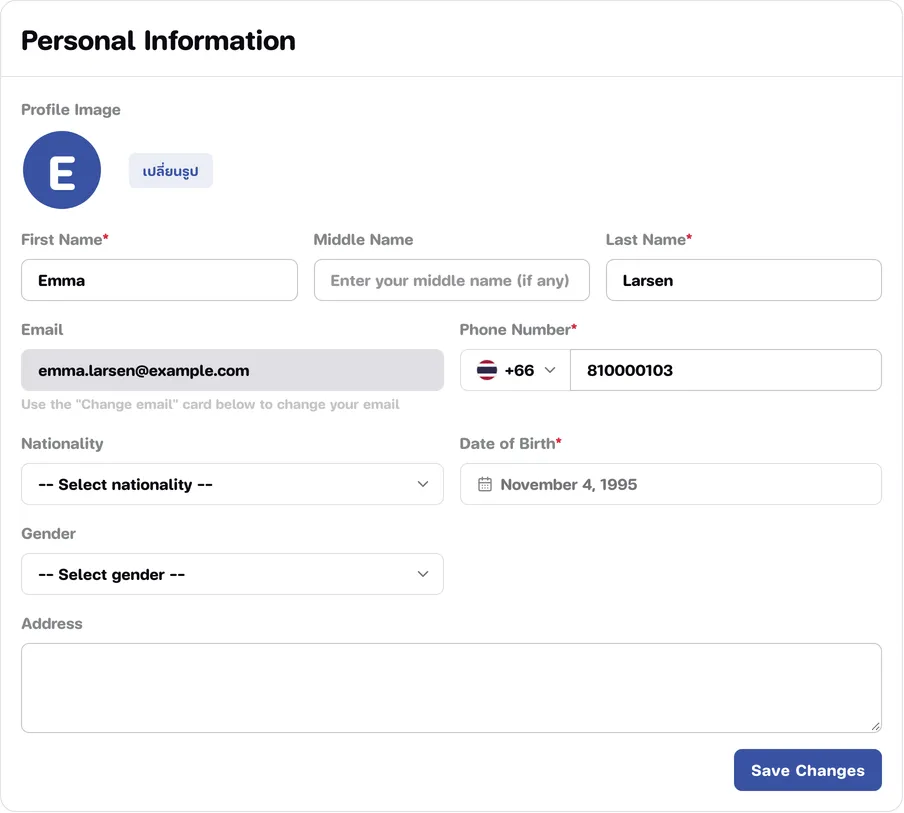
Scroll to the Personal Information card.
-
Change the fields you need:
- First Name and Last Name are required.
- Middle Name is optional. To remove it, clear the box.
- Phone Number is required. Pick the country code from the button in front.
- Date of Birth is required.
- Nationality, Gender and Address are optional.
-
Press Save Changes.
The Email field in this card cannot be edited. To change your email, use the Change Email card further down.
Change your profile picture
Section titled “Change your profile picture”-
In the Personal Information card, next to Profile Image, press the เปลี่ยนรูป (“Change picture”) button. It is labelled in Thai on both language versions of the site.
-
Choose a picture. It uploads straight away; there is nothing else to save.
The picture is cropped to a square from its centre, so pick one with your face in the middle. Photos from your phone work as they are, iPhone photos included. If your browser cannot read a photo, see the photo tips in Identity verification.
Change your email
Section titled “Change your email”-
In the Change Email card, type the new address in Enter new email.
-
Press Save email. A confirmation link is sent to the new address (not the old one).
-
Open the email at the new address and click the link within 24 hours.
-
When you see Email changed successfully, you have been signed out on every device for security. Sign in again with your new email.
Your email does not change until you click the link sent to the new address. If you see That email is already in use by another account., another account already uses it. If the link has expired, submit a new change-email request.
Change your password
Section titled “Change your password”-
In the Change Password card, enter your Current Password.
-
Enter a New Password and Confirm New Password. The new password must be different from the current one.
-
Press Change Password.
If you cannot remember your current password, sign out and use Forgot password? on the sign-in page. See Sign in and sign out.
Sign out of other devices
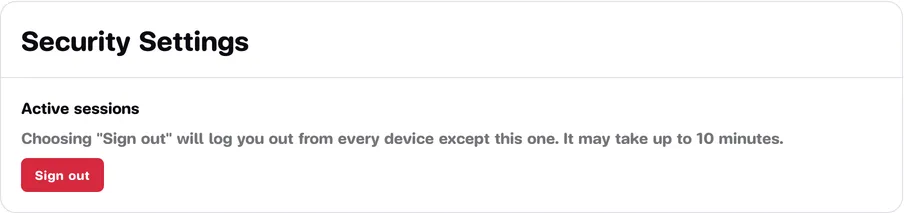
Section titled “Sign out of other devices”If you are still signed in somewhere else, for example a computer at work, you can sign out of every device at once except the one you are using.
-
In the left-hand menu, choose Settings.
-
In the Security Settings card, under Active sessions, press Sign out.
-
Press Sign out again in the Sign out other sessions? window.
It may take up to 10 minutes for the other devices to be signed out. After that you need to sign in again on them.