

Chat with a host
Want to know more before you book: are pets allowed, what’s the parking like, can you move in early? You can message the host straight from the listing page. You don’t need to book first; you only need to be signed in.
Start a chat from a listing
Section titled “Start a chat from a listing”-
Open the listing you’re interested in. If you’ve picked dates and the number of guests, the room card you send also shows the total for that stay. See The listing page.
-
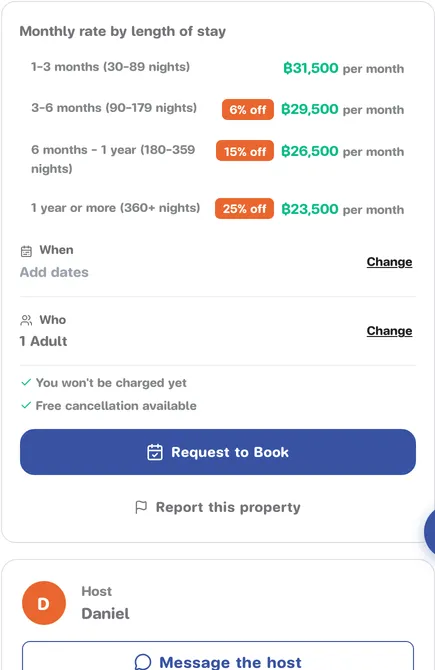
Under the booking box there’s a Host card with the host’s name and picture. Press Message the host. (On a phone, this card is further down the page.)
-
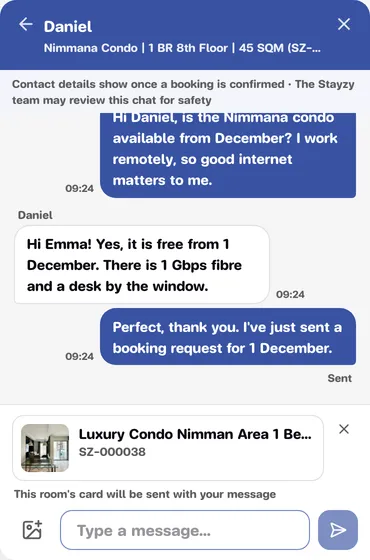
The chat opens with a room card waiting above the text box and the note This room’s card will be sent with your message.
-
Type your question and press send. The card goes along with your message.
You won’t see Message the host on your own listing, because you can’t message yourself.
Start a chat from Match
Section titled “Start a chat from Match”In the Match results, each room has a Message this host button. It opens a chat with that room’s host, with the room card and a short message ready in the text box. Edit it as you like before you send. See Find a room with Match.
What the room card shows
Section titled “What the room card shows”The card tells the host straight away which room you mean:
- photo, room name and room code
- the starting price, such as From ฿…/month, or, if you picked dates, the total and number of nights
- your check-in and check-out dates and number of guests (if picked)
- No longer available if the room no longer takes bookings
Press the card any time to open that listing.
One chat per host
Section titled “One chat per host”You have one chat with each host. If you ask the same host about another of their rooms, the message continues in the same chat with the new room’s card. In your chat list, the latest room you talked about shows under the host’s name.
In the chat you see only the host’s first name, and the host sees only yours: no surnames or email addresses.
Contact details stay hidden until a booking is confirmed
Section titled “Contact details stay hidden until a booking is confirmed”To keep both sides safe, in a chat with a host, phone numbers, email addresses, LINE IDs and links to other websites are replaced with ••••, and the message gets the note Contact details show once a booking is confirmed. You see your own messages hidden the same way, so you know what the other side sees.
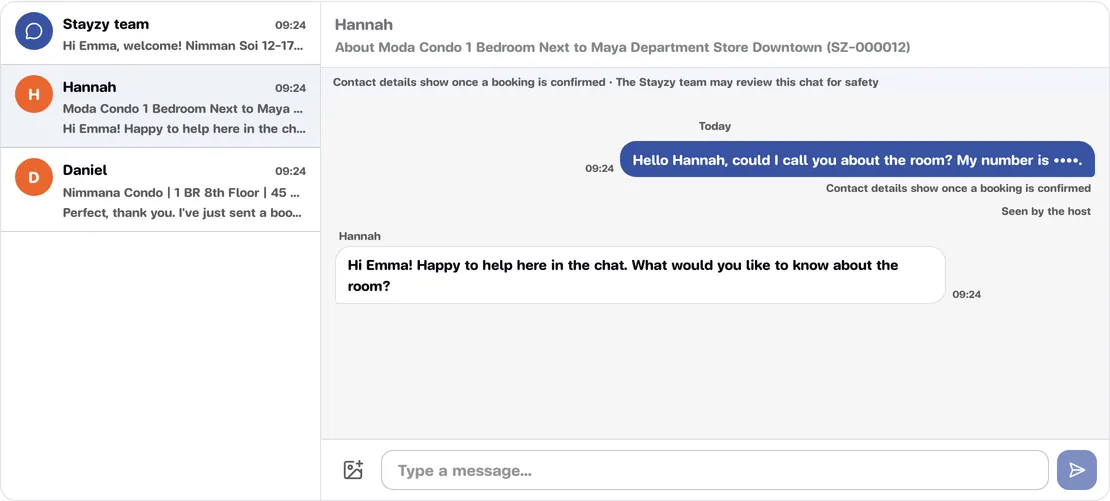
Once you have a confirmed booking with this host, contact details in the chat show normally, older messages included. See Send a booking request for booking, and Contacting your host for reaching the host after you book.
The Stayzy team may read host chats
Section titled “The Stayzy team may read host chats”Every chat with a host starts with the note Contact details show once a booking is confirmed · The Stayzy team may review this chat for safety. The team can only read; it doesn’t write in this chat. If you need the team’s help, message them directly: see Chat with the Stayzy team.
How you know the host replied
Section titled “How you know the host replied”- Under your latest message, Sent changes to Seen by the host once the host has read it.
- If the host replies and you haven’t read it within about 5 minutes, we email you and add a bell notification saying the host replied to your message.
- All your chats with hosts are in Messages, on the Guest tab, and in the chat button in the bottom-right corner.
See also Notifications.