

Review and approval
Every new listing, and every change to a listing, is reviewed by the Stayzy team before guests see it. This page explains the statuses and what to do in each.
Listing statuses
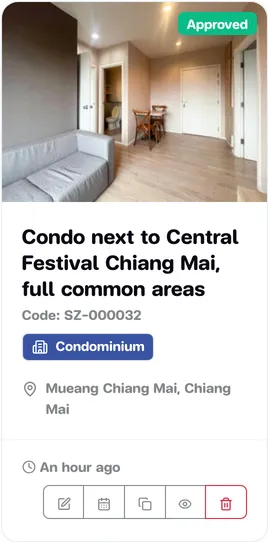
Section titled “Listing statuses”The status is the badge in the top-right corner of the photo on each card on My Properties.
| Status | Meaning |
|---|---|
| Draft | Not submitted yet — for example you used Save and exit, or started editing a live listing. |
| Pending Approval | Submitted and waiting for our team. You can’t edit it in the meantime. |
| Approved | Passed review. Guests can find it and send booking requests. |
| Rejected | Didn’t pass. Fix it and submit again. |
What our team checks
Section titled “What our team checks”We check that the information is complete and true to the place — type, location, price, description and photos (sharp, no watermarks, no screenshots) — and we check the Thai/English translation that was made automatically. If needed, the team may tidy up the translation before approving.
When the result is in
Section titled “When the result is in”You get a notification in the bell on the website and by email, both when a listing is approved and when it’s rejected (see Notifications).
- Approved — the listing appears in search right away.
- Rejected — the card shows a red box, This listing was rejected, with the reviewer’s reason (a long reason is shown in full in the listing editor). If no reason was given, please contact us.
Resubmit after a rejection
Section titled “Resubmit after a rejection”-
On My Properties, click the edit button (the pencil) on the rejected card.
-
The top of the editor shows This listing was rejected with the Reviewer’s reason. Fix the points in the relevant menu items and click Save in each.
-
Click Submit for approval in the top-right corner.
-
In the Review your listing window, check that every item under Completeness is ticked, tick the box confirming the information is accurate and that you agree to the terms, then click Submit for approval.
The completeness list has seven items: title, photos, property type, pricing, location, description, and amenities (at least one). If any is missing, the submit button stays disabled — click Edit next to the missing item to fill it in.
Edit a listing that is already live
Section titled “Edit a listing that is already live”You can edit an Approved listing at any time. The current version stays visible and bookable while you do.
-
Open the listing editor and change what you need. The first time you click Save, a draft is created separately from the live version (you’ll see Created a new draft for editing).
-
A box at the top, You have unpublished changes, reminds you that guests still see the published listing.
-
When you’re done, click Submit for approval as above.
-
Once our team approves it, the new version replaces the old one.