

Edit a listing
The Listing editor is where you finish a draft, fix a rejected listing, or update a live one. It has a menu of sections on the left and the form for the chosen section on the right. You save one section at a time, then send the listing for review when you’re done.
Open the editor
Section titled “Open the editor”On My Properties, click the edit button (the pencil) at the bottom of the listing’s card.
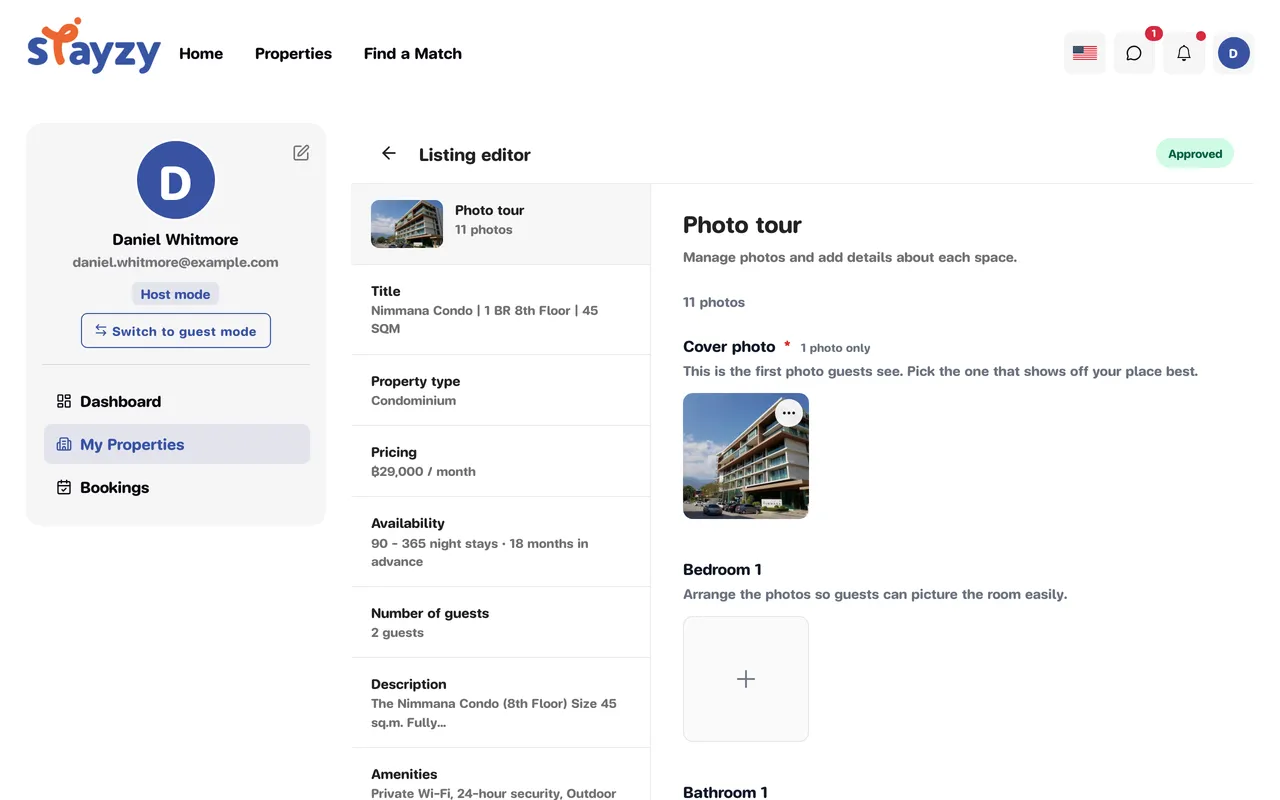
What you can edit
Section titled “What you can edit”| Menu | What it covers |
|---|---|
| Photo tour | Add, delete, regroup and reorder photos |
| Title | The listing title |
| Property type | Type, total floors, unit floor, usable area and land area (depending on the type) |
| Pricing | Full monthly price, discounts, security deposit, cleaning fee. See Set your price. |
| Availability | Minimum nights (30 or more), Maximum nights (0 = no limit) and the Availability window of 6, 12 or 18 months |
| Number of guests | The most guests you accept (not shown for land) |
| Description | Listing description, Your property, Guest access, Interaction with guests, Other details to note |
| Amenities | Tick what your place has |
| Accessibility features | For example Step-free path to the entrance, Wide entrance, Disabled parking space |
| Location | Address (including the project picker) and area details such as Neighborhood description and Getting around |
| House rules | Check-in and checkout times and Additional rules |
| Cancellation policy | Terms for Short-term stays and Long-term stays |
Save one section at a time
Section titled “Save one section at a time”-
Pick a section from the menu on the left (some have a second level of sub-sections).
-
Make your changes in the form on the right, then click Save in the bar at the bottom. To undo, click Cancel.
-
You’ll see Saved successfully when it worked. If something is invalid — a longer stay priced above a shorter one, or a minimum stay under 30 nights — Save stays disabled until you fix it.
If you try to leave with unsaved changes, you’ll be asked Discard changes? Click Stay to go back and save, or Leave to drop them.
Text fields (title, description, address and so on) accept Thai or English — the other language is translated after you submit.
Submit for review
Section titled “Submit for review”Saving doesn’t show your changes to guests yet — our team has to review them first.
-
Click Submit for approval in the top-right corner. (It appears when the listing is a draft, was rejected, or has unpublished changes.)
-
The Review your listing window summarises the key details and a Completeness checklist. If anything is missing, click Edit next to it.
-
Tick the box confirming the information is accurate and that you agree to the terms, then click Submit for approval.
After you submit, the status becomes Pending approval and the forms are read-only until the result is in. See Review and approval.