

Manage confirmed bookings
Once you approve a request, the booking is Confirmed. The booking’s detail page is where you see who’s coming, get in touch with them, and record check-in and check-out. Open it from Bookings, then click View on the booking.
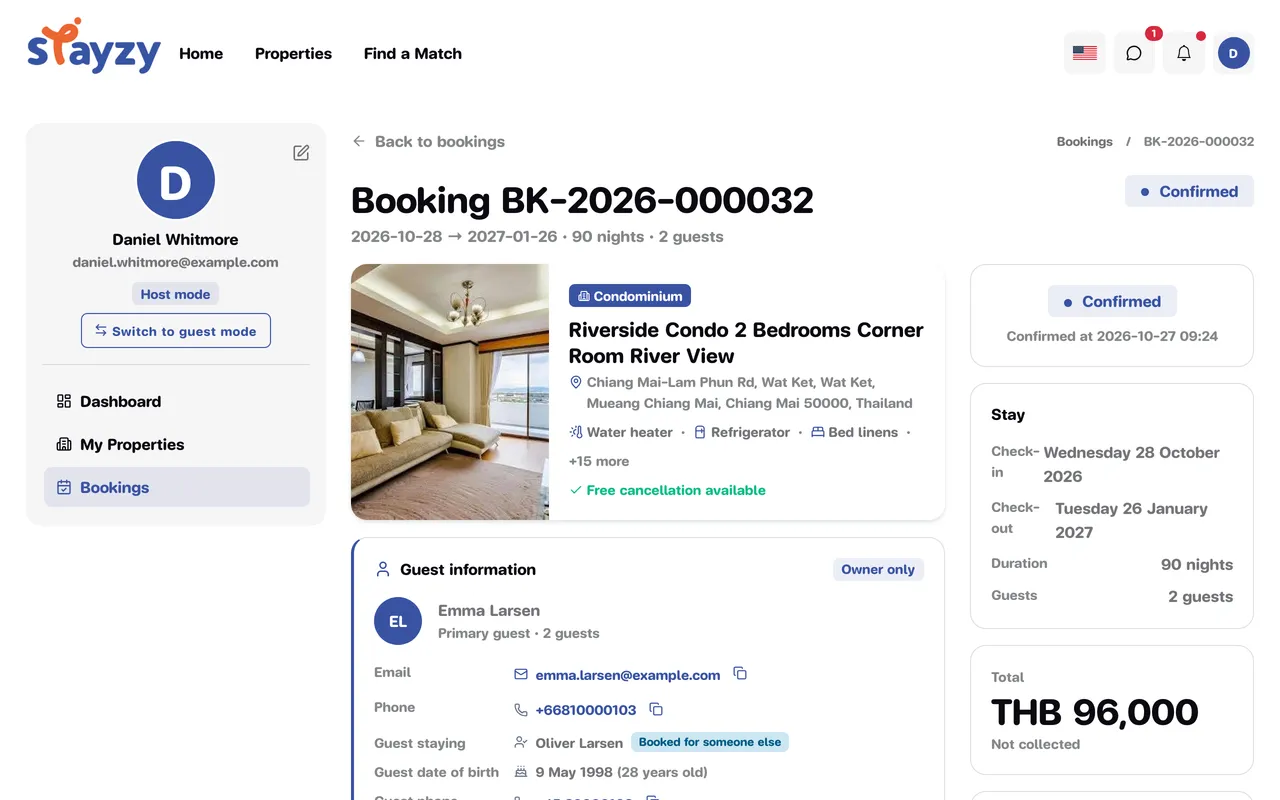
Guest information
Section titled “Guest information”The Guest information box (marked Owner only — guests don’t see this part) shows:
- The booker’s name — the person who sent the request and is identity-verified with Stayzy — and the number of guests.
- The booker’s Email and Phone (once they can be shown — see the next section). Click to email or call, or use the copy button.
- Special requests, if the guest wrote any.
When the booker isn’t the one staying
Section titled “When the booker isn’t the one staying”Sometimes a booking is made for someone else — a company booking for an employee, or a parent for their child. Then a Booked for someone else section appears, with a note that the booker isn’t the person staying, and shows:
- Guest staying — the name of the person who will stay
- Guest date of birth, with their age on the check-in date
- Guest phone
The person who arrives is the Guest staying. All booking emails still go to the booker.
When contact details appear
Section titled “When contact details appear”For both sides’ privacy, the guest’s email and phone number appear only once the booking is confirmed and it is the day before check-in or later (Thailand time). Before that, the Contact row tells you the date they will appear. The guest sees your contact details at the same time. Names, date of birth and special requests are always shown.
Contact details aren’t shown for a cancelled or closed booking.
Message the guest
Section titled “Message the guest”Send message (in the guest box) and Send message to guest (in the Actions box) take you to your chat with this guest. They work only after the guest has messaged you first. Until then the button is greyed out and says The guest hasn’t messaged you yet. See Chat for hosts.
Check in
Section titled “Check in”-
On the check-in day, when the guest arrives, open the booking and click Check in in the Actions box.
Before the check-in day the button is disabled (hovering shows Not yet time).
-
In the Confirm check-in? window, click Confirm check-in.
The status changes to Checked-in.
Check out
Section titled “Check out”When the guest moves out, open the booking, click Check out, then Confirm check-out. The status changes to Completed.
Cancel a booking
Section titled “Cancel a booking”-
Click Cancel booking in the Actions box (available for Confirmed bookings before check-in).
-
Choose a Cancellation reason * (required): Host request, Guest request, Force majeure or Policy violation, and add a note if you like.
-
Click Confirm cancellation.
The booking’s dates open up again on your calendar. Before cancelling, please read the Cancellation and refund policy.
Internal notes and status history
Section titled “Internal notes and status history”- Internal notes — jot down notes about this booking for yourself, such as meter readings or what you agreed. Guests can’t see them. You can edit or delete them later.
- Status history — every status change of the booking, with date and time.
Booking statuses
Section titled “Booking statuses”| Status | Meaning |
|---|---|
| Awaiting approval | A request waiting for your answer. See Answer booking requests. |
| Confirmed | The booking is confirmed and waiting for check-in. |
| Checked-in | The guest has checked in. |
| Completed | Checked out. |
| Cancelled | The booking was cancelled. |
| Declined | You (or the system) declined the request. |
| Expired | The request wasn’t answered in time. |