

Wishlist
Found a place you like but not ready to book? Save it to your wishlist with the heart. Your wishlist belongs to your account, not to one device, so you see the same list on every device where you sign in.
Add a place to your wishlist
Section titled “Add a place to your wishlist”You will find the heart icon:
- on place cards in search results and on the home page;
- on the place’s details page, next to its name.
Tap the heart once to add the place; the heart turns solid. Tap it again to remove it.
View your wishlist
Section titled “View your wishlist”-
Open the profile menu at the top right, choose My Profile, then Wishlist in the left-hand menu.
-
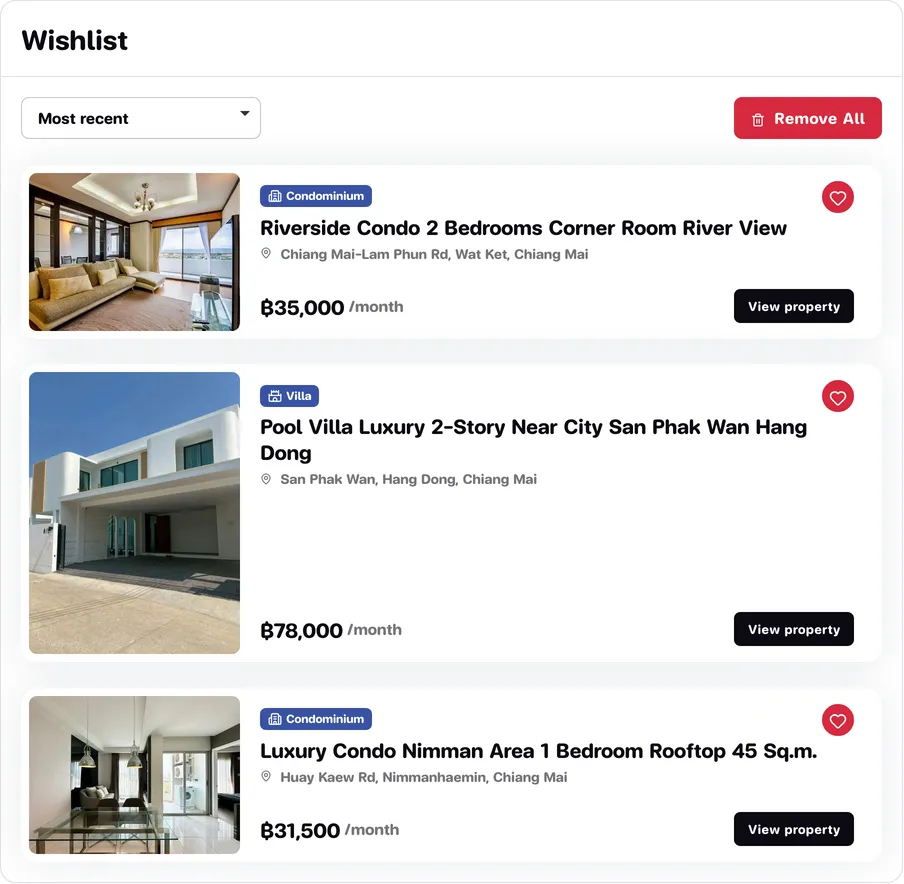
Each card shows a photo, the property type, the name and the monthly price (some places show Price on request).
-
Press View property or the place’s name to open its details page and send a booking request.
Use the sort box at the top left to order the list, for example Most recent (most recently saved first), Price (low to high) or Price (high to low).
Remove places
Section titled “Remove places”- One at a time: press the red heart button on the card. It disappears straight away.
- All of them: press Remove All at the top right, then Remove all in the Confirm removal window.
Removing places from your wishlist does not affect your requests or bookings.
Sharing a place
Section titled “Sharing a place”The wishlist page has no share or copy-link button yet. To send a place to someone, press View property and copy the address (URL) from your browser’s address bar.