

Sign in and sign out
This page covers signing in and out: a normal sign-in, setting a new password when you forget it, restoring an account you recently deleted, and the policy window that may appear after you sign in.
Sign in with email
Section titled “Sign in with email”-
Press Login at the top right of the website.
-
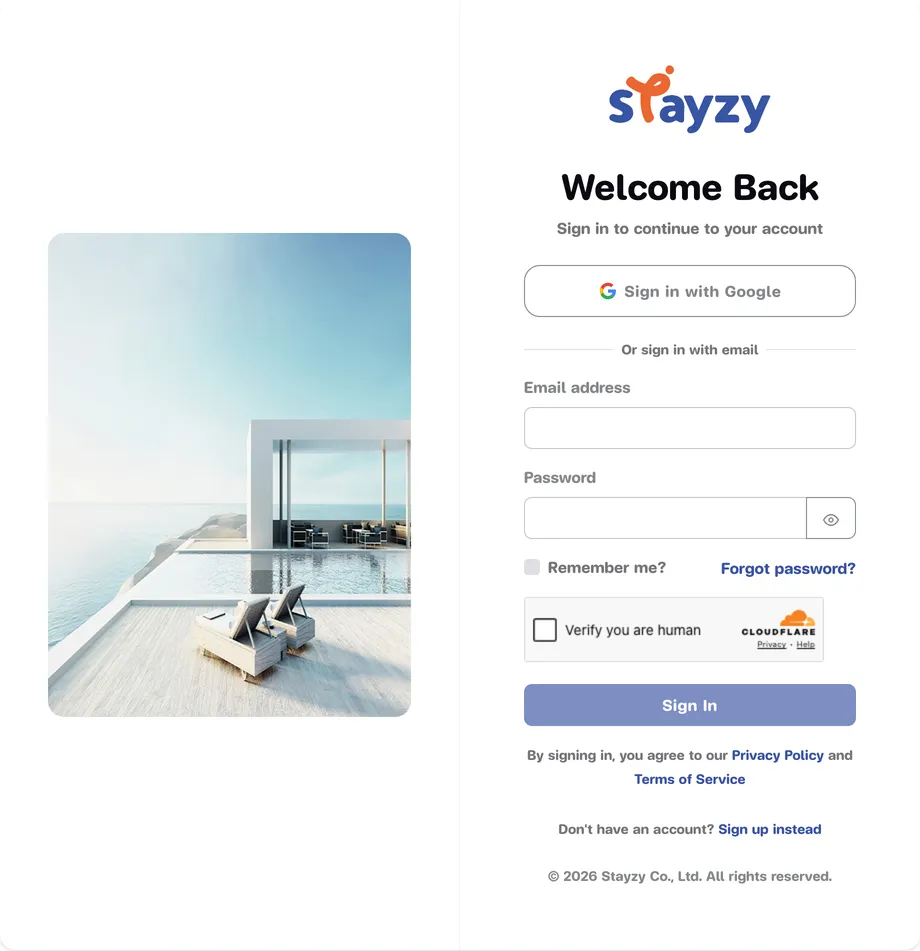
Enter the Email address and Password you signed up with.
-
Wait for the security check under the form to pass, then press Sign In.
-
You are taken back to the page you were on before, for example the place you were about to book.
If you see Incorrect email or password., check capital letters and your keyboard language. If you see Account not found. Please check your email or sign up., there is no account with that email yet. See Sign up.
Sign in with Google
Section titled “Sign in with Google”If you signed up with a Google account, press Sign in with Google on the sign-in page and pick the same account. You do not need a Stayzy password.
Forgot your password
Section titled “Forgot your password”-
On the sign-in page, press Forgot password?
-
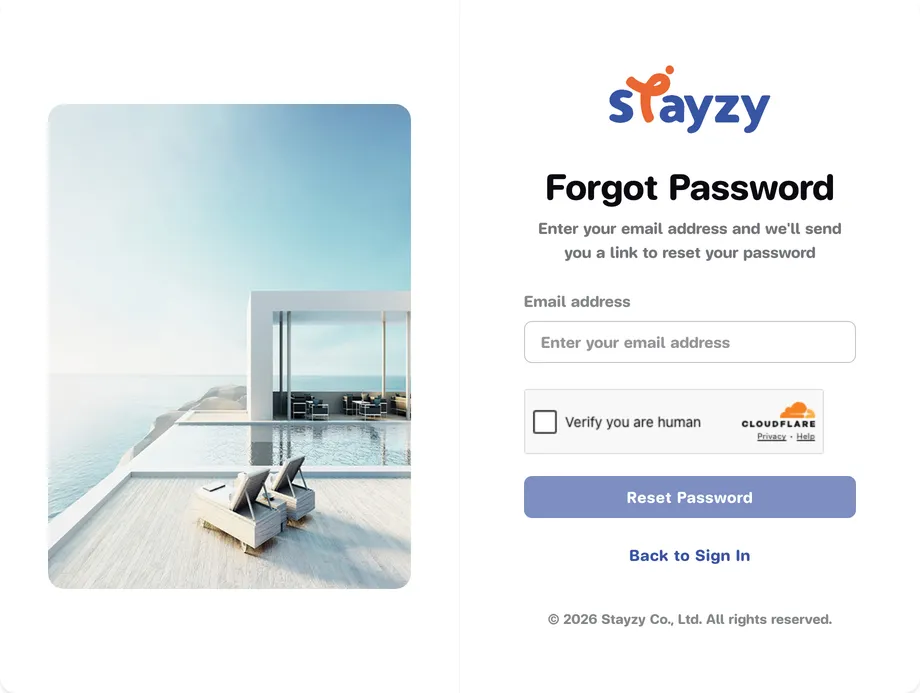
Enter your account’s Email address and press Reset Password.
-
When you see Reset link sent!, open the email from Stayzy and click the link in it.
-
On the Reset Password page, enter a New Password (at least 6 characters) and Confirm Password, then press Reset Password.
-
When you see Password Reset Successful!, sign in with your new password.
If you know your password and just want to change it, do it from your profile instead. See Profile.
Restore a recently deleted account
Section titled “Restore a recently deleted account”When you delete your account it can still be restored for 30 days. If you sign in with the same email and password during that time, you are taken to a restore page that shows when the account was deleted, when it will be deleted for good, and how many days are left.
-
Sign in with the email and password of the deleted account.
-
On the restore page (กู้คืนบัญชีของคุณ, “Restore your account”), press กู้คืนบัญชีของฉัน (“Restore my account”).
-
Press ยืนยัน กู้คืน (“Confirm, restore”) in the confirmation window. Your account and the properties linked to it are switched back on, and you are signed in.
If you change your mind, press ยกเลิกและกลับไปหน้าเข้าสู่ระบบ (“Cancel and go back to sign in”). After 30 days the account can no longer be restored or signed in to. See Delete your account.
Accept updated policies
Section titled “Accept updated policies”When Stayzy updates a policy, such as the Terms of Service or the Privacy Policy, you are asked to read and accept the new version after you sign in.
- For an optional policy, a bar says Some of our policies have been updated. You can press Later to put it off.
- For a required policy, an Action required window covers the site. You need to accept before you can carry on, or you can press Sign out. Manage your data takes you to your privacy page.
-
Press Review & Accept.
-
In the Review updated policies window, read each policy and tick the ones you accept.
-
Press Accept selected.
You can see which version of each policy you accepted, and when, under Privacy and your data.
Sign out
Section titled “Sign out”-
Press your profile picture (or the circle with your first initial) at the top right.
-
Choose Sign Out.
-
You see Signed Out Successfully and are taken back to the home page.