

The listing page
A listing page has everything you need to decide: photos, details of the unit, location, house rules and the monthly price for the length you plan to stay. The booking card on the right (a bar at the bottom on a phone) is where you pick dates and send a booking request.
The top of the page
Section titled “The top of the page”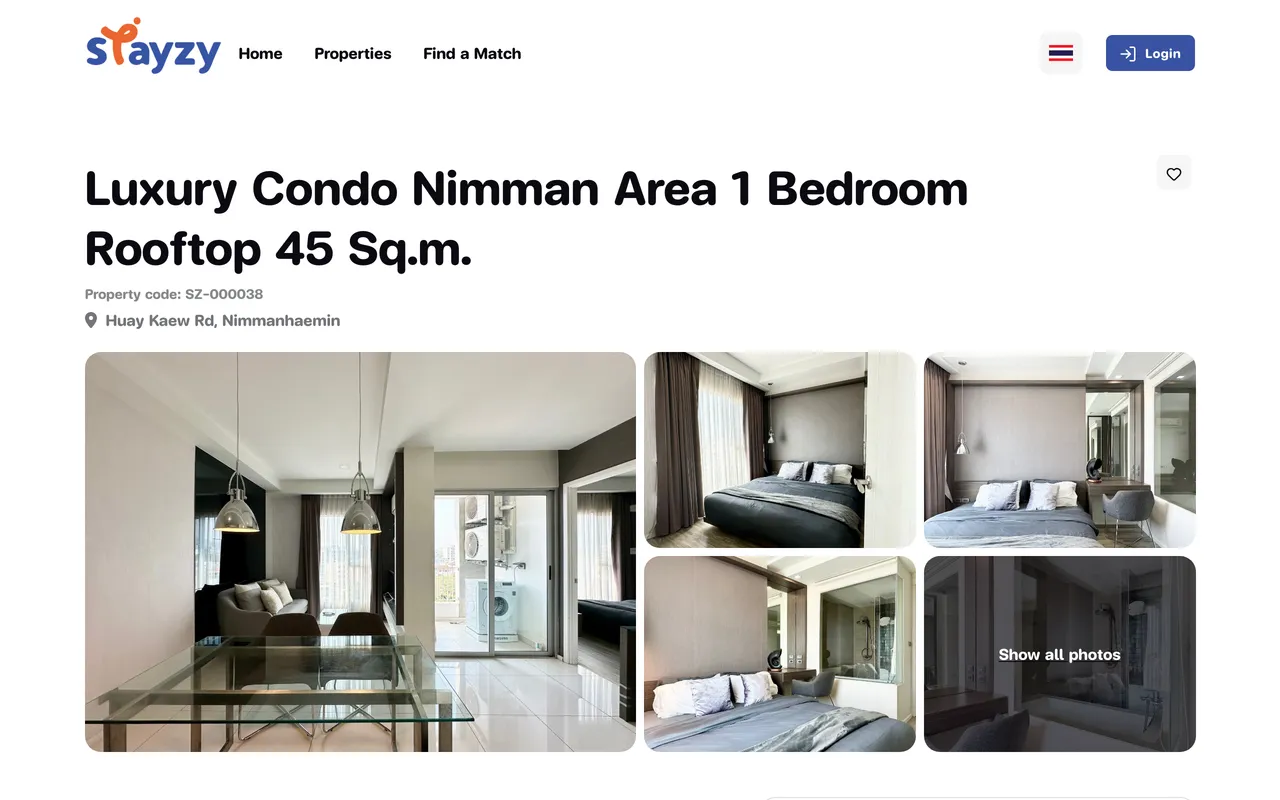
- Name and Property code. Quote the code when you talk to the team or the host.
- Heart saves the listing to your Wishlist.
- Photos: click any photo, or Show all photos, to open the photo viewer.
The photo viewer
Section titled “The photo viewer”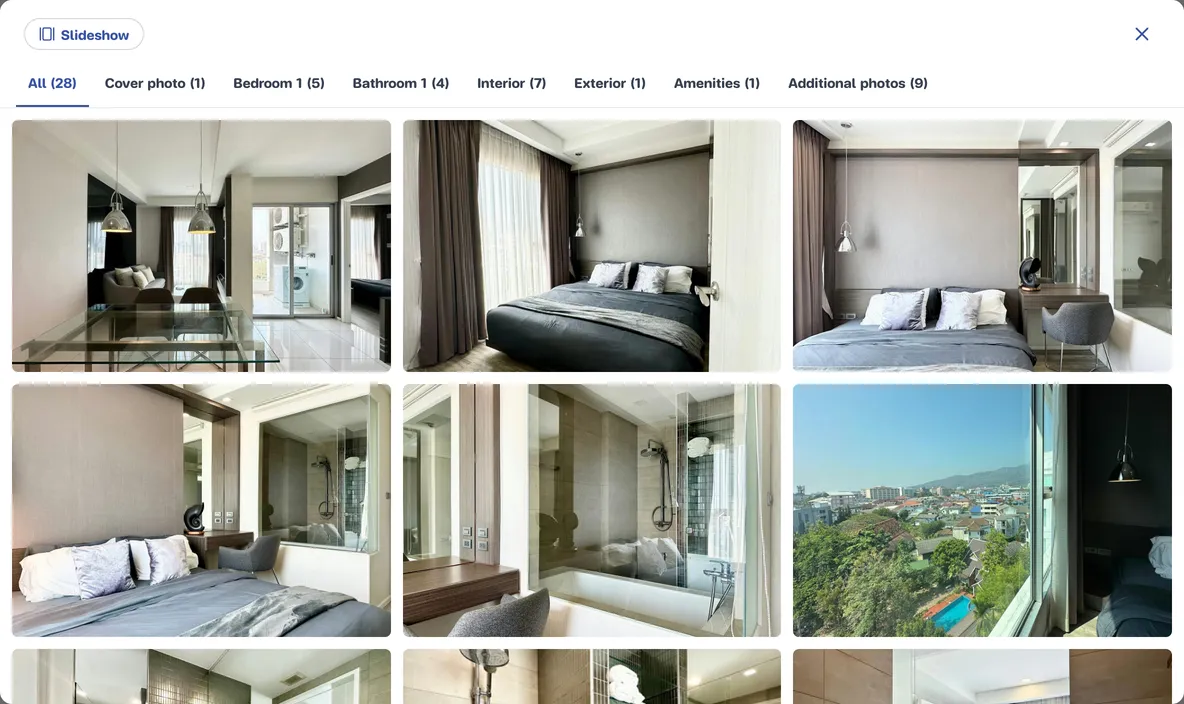
- Tabs at the top group photos by part of the home, e.g. bedroom, bathroom. All shows everything.
- Slideshow shows one photo at a time, full size. Gallery goes back to the grid.
- Close it with the × or your browser’s/phone’s back button (you stay on the listing).
About this unit
Section titled “About this unit”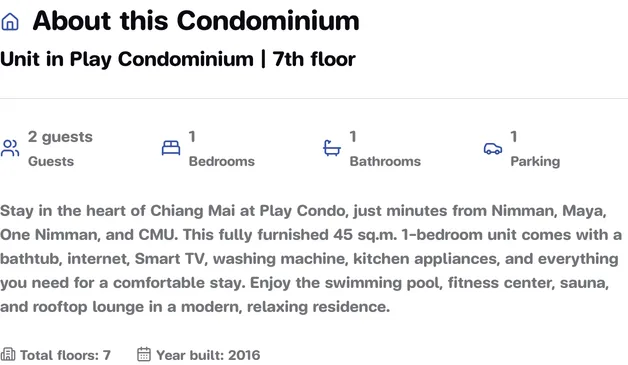
Under the “About this …” heading, a short line says where the unit is, for example:
Unit in Supalai Monte 2 | 8th floor
The first part is the kind of unit and its project (or district and province if it is not in a project). After the
| comes the unit’s floor, or the building’s number of floors. With no floor information that part is left out.
Below it are the key figures (Guests, Bedrooms, Bathrooms, Usable area, Parking) and the host’s own descriptions, such as The space, Guest access and Other things to note.
Amenities, location and nearby places
Section titled “Amenities, location and nearby places”- What this place offers?: the amenities in the unit, by category.
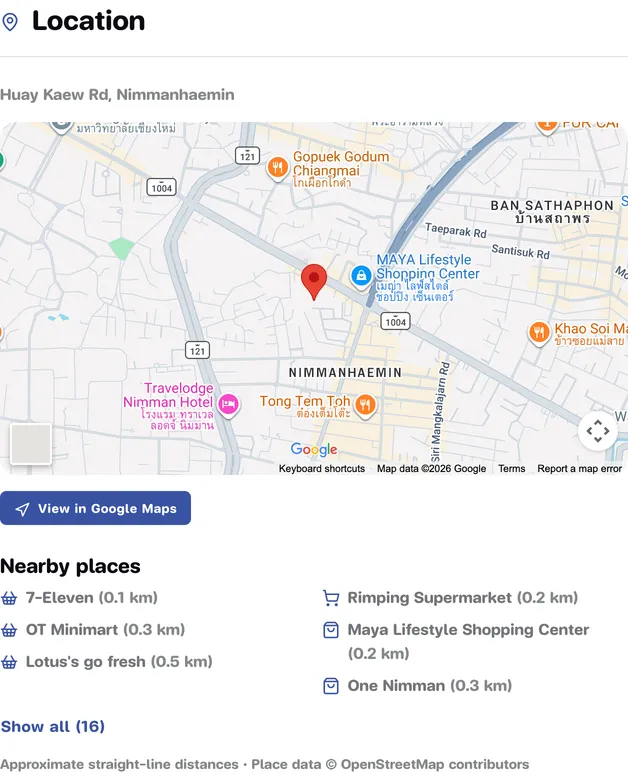
- Location: the address and a map. View in Google Maps opens directions.
- Nearby places (under the map): convenience stores, shopping and markets, schools, hospitals, transport and parks within 5 km, nearest first. Show all opens every category.
House rules and length of stay
Section titled “House rules and length of stay”- House rules: check-in/check-out times, quiet hours, and what is or isn’t allowed, such as pets, smoking and events (green tick = allowed, red cross = not allowed), plus the host’s Additional rules.
- Length of stay: the minimum and maximum nights this unit takes (the minimum is never below 30).
- Important Notes at the end of the page: worth reading, especially that sending a booking request does not yet confirm a booking and that online payment is not available on the website.
How the price works
Section titled “How the price works”The booking card shows the Monthly rate by length of stay. The longer you stay, the lower the monthly rate tends to be; a “…% off” badge on each band shows the saving against the full rate.
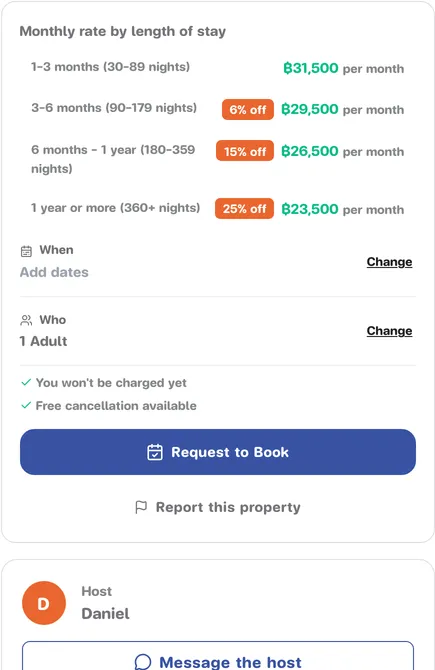
| Band shown | Nights |
|---|---|
| 1–3 months | 30–89 nights (full rate) |
| 3–6 months | 90–179 nights |
| 6 months – 1 year | 180–359 nights |
| 1 year or more | 360+ nights |
The rules:
- A month is always 30 nights, whether the calendar month has 28 or 31 days.
- Rent = monthly rate × nights ÷ 30, using the rate of the band your number of nights falls in.
- If the host has not set a rate for a longer band, the rate of the shorter band applies.
Example: ฿15,000 a month (30–89 nights band) for 45 nights: ฿15,000 × 45 ÷ 30 = ฿22,500.
Once you pick dates, the card switches to Your rate for these dates with a total, e.g. “Total ฿22,500 · 45 nights”, and marks your band in the table with Your stay.
The host card
Section titled “The host card”Under the booking card (at the end of the page on a phone) is the Host card with the host’s first name and picture. Press Message the host to ask questions before you book; the listing (and your dates, if you picked them) is attached to your message. See Chat with a host.
To talk to the Stayzy team, use the floating chat button at the bottom right (Chat with Stayzy). If something on the listing looks wrong, press Report this property under the booking card.
Project pages
Section titled “Project pages”If the unit is part of a project (a condo building or housing estate), the listing has an About the project section with common-area photos, Shared facilities (a pool or gym belongs to the project, not the unit) and Other units in …. Press View project to open the project page.
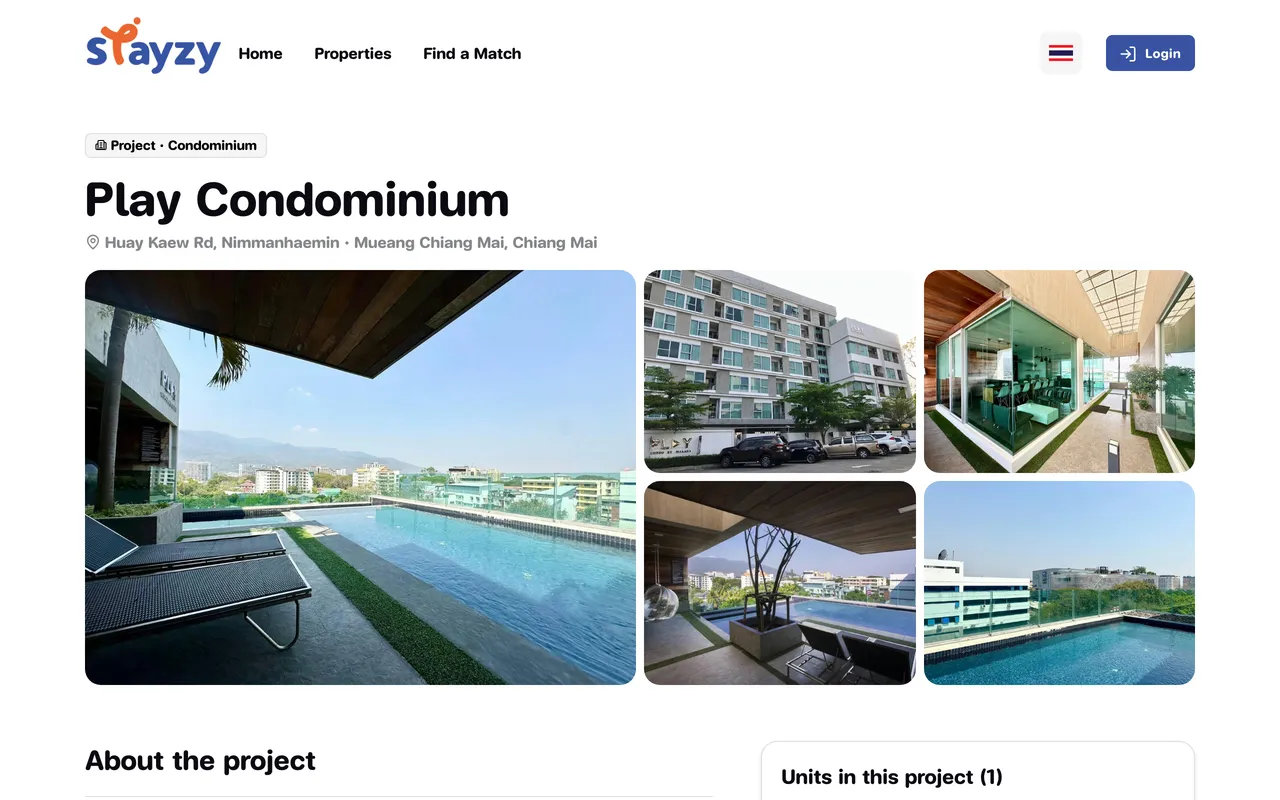
The project page gathers what every unit in it shares: photos, number of units and floors, year built, shared facilities, location and nearby places, and the Units in this project that are listed for rent (units marked Unavailable cannot be booked right now).