

Sign up
You can browse places on Stayzy without an account, but to save favorites, chat with the team or an owner, send a booking request or list a property you need to sign up. You can sign up with your email or with a Google account. One account works both when you are a guest and when you are a host.
Sign up with email
Section titled “Sign up with email”-
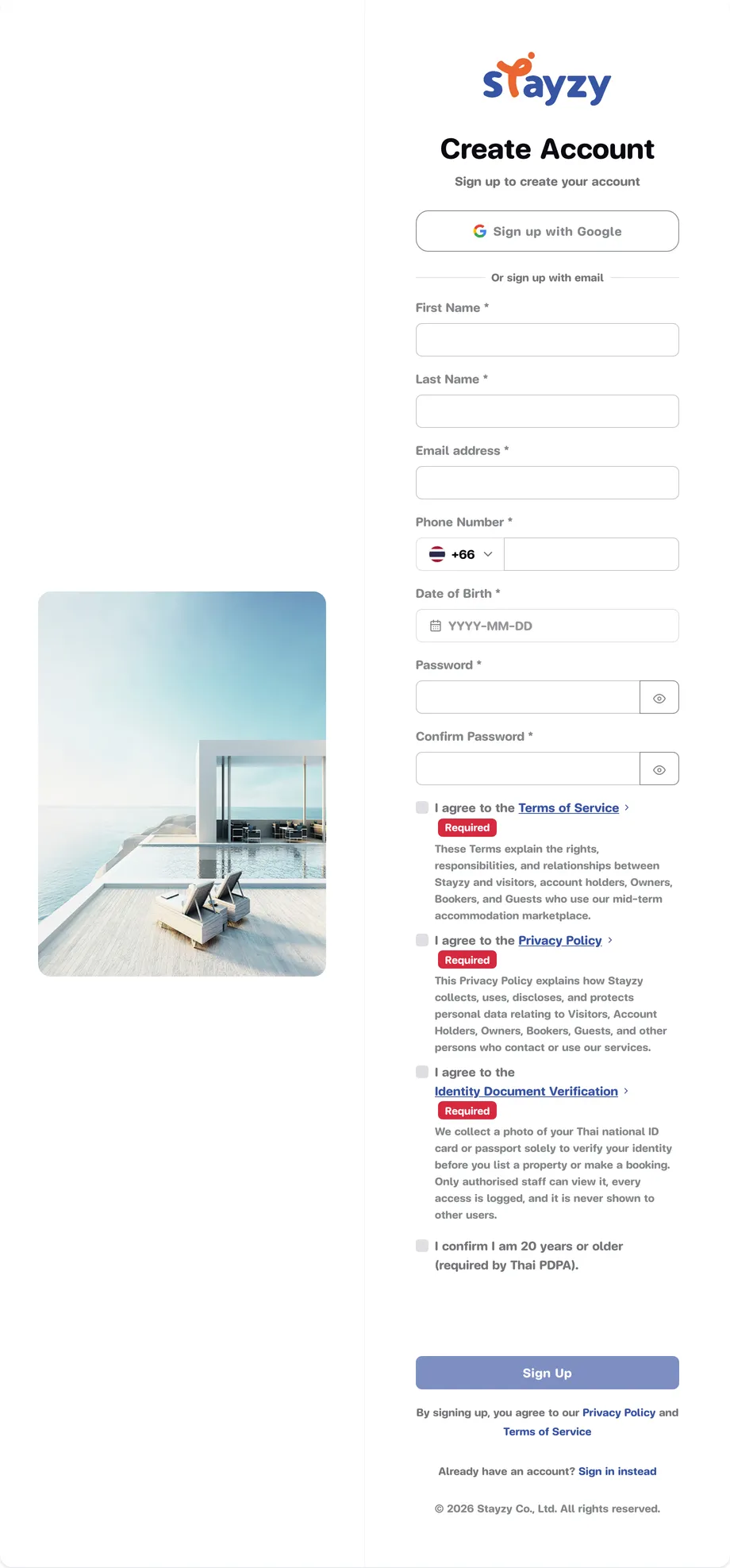
Go to the sign-up page, or press Login at the top right of the website and then Sign up instead under the form.
-
Fill in every field marked *:
- First Name and Last Name, 2–50 characters each.
- Email address. Use an email you can read, because the confirmation link goes there.
- Phone Number. Pick the country from the dial-code button in front (Thailand +66 by default), then type the number as usual.
- Date of Birth, picked from the calendar.
- Password, at least 6 characters, then type it again in Confirm Password. The eye icon shows what you typed.
-
Read and tick the policies. Each line starts with I agree to the followed by the policy name. Every line marked Required must be ticked before you can sign up. Lines under Optional, if any, are up to you.
-
Tick I confirm I am 20 years or older (required by Thai PDPA).
-
Wait for the security check box under the form to pass. It usually passes on its own in a few seconds; if it shows something to click, follow it.
-
Press Sign Up.
-
When you see Register Successfully! your account has been created. Press Go to Sign In to sign in straight away.
Sign up with Google
Section titled “Sign up with Google”-
On the sign-up page, first tick every Required policy and the 20-or-older box. The Google button does nothing until they are ticked (if you press it early, the form tells you what is missing).
-
Press Sign up with Google and choose the Google account to use.
-
Your account is created and you are signed in right away. There is no confirmation email to wait for.
Confirm your email
Section titled “Confirm your email”If you signed up with email, we send you a confirmation link straight away.
-
Open the email from Stayzy and click the confirmation link. If it is not in your inbox, check your spam folder.
-
The page shows Email Confirmation Successful! and takes you to the sign-in page after a few seconds.
The link is valid for 24 hours. If it has expired, or you cannot find the email, sign in and go to My Profile. A box at the top says Email not verified; press Resend verification email to get a new link.
If sign-up fails
Section titled “If sign-up fails”- This email is already registered. You already have an account. Go to Sign in; if you forgot the password, use Forgot password?
- This email belongs to a recently deleted account that can still be restored. Your old account is still inside its 30-day restore period. Sign in with that email to restore it. See Delete your account.
- Please complete the security verification. The security check has not passed yet. Wait a moment, or reload the page and try again.
Next steps
Section titled “Next steps”- Sign in
- Verify your identity, which you need before you can book or list a property.