

Answer booking requests
On Stayzy, guests don’t book instantly — they send a booking request for you to consider. When you approve it, the booking is confirmed straight away; there’s no online payment step. (For the guest’s side, see Send a booking request.)
How you know a request has arrived
Section titled “How you know a request has arrived”When a new request comes in, you get a notification in the bell on the website and by email (see Notifications). You can also open Bookings in host mode.
The bookings list
Section titled “The bookings list”The All Bookings page shows bookings across all your listings.
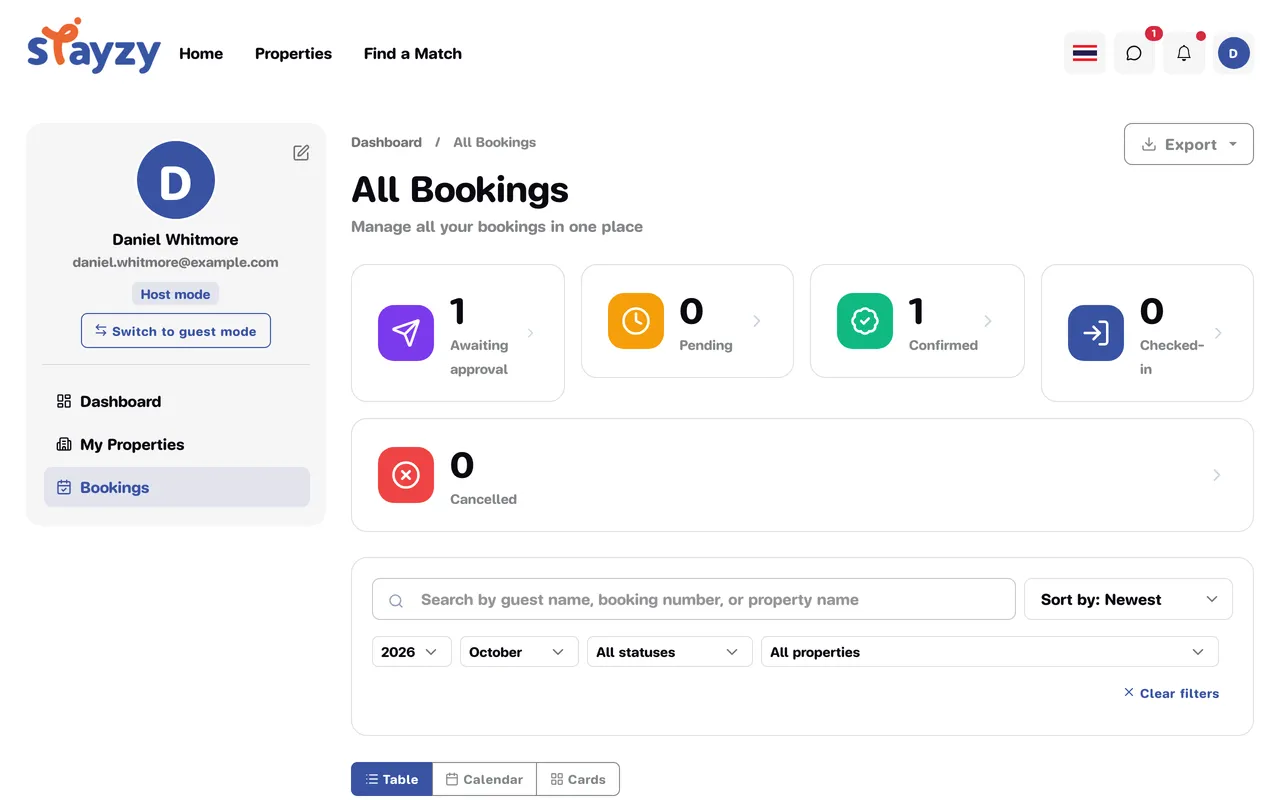
- The boxes at the top count bookings by status. The first, Awaiting approval, holds the requests waiting for your answer. Click a box to filter by that status (requests awaiting approval are shown from every month).
- Search by guest name, booking number or property name, and filter by year, month, status and property. Clear filters starts over.
- Switch between the Table, Calendar and Cards views.
- Click View or the booking number to open the details.
A request that hasn’t been approved has a number starting with RS-. Once you approve it, it gets a booking number starting with BK-.
Approve a request
Section titled “Approve a request”-
Open a request with the status Awaiting approval.
-
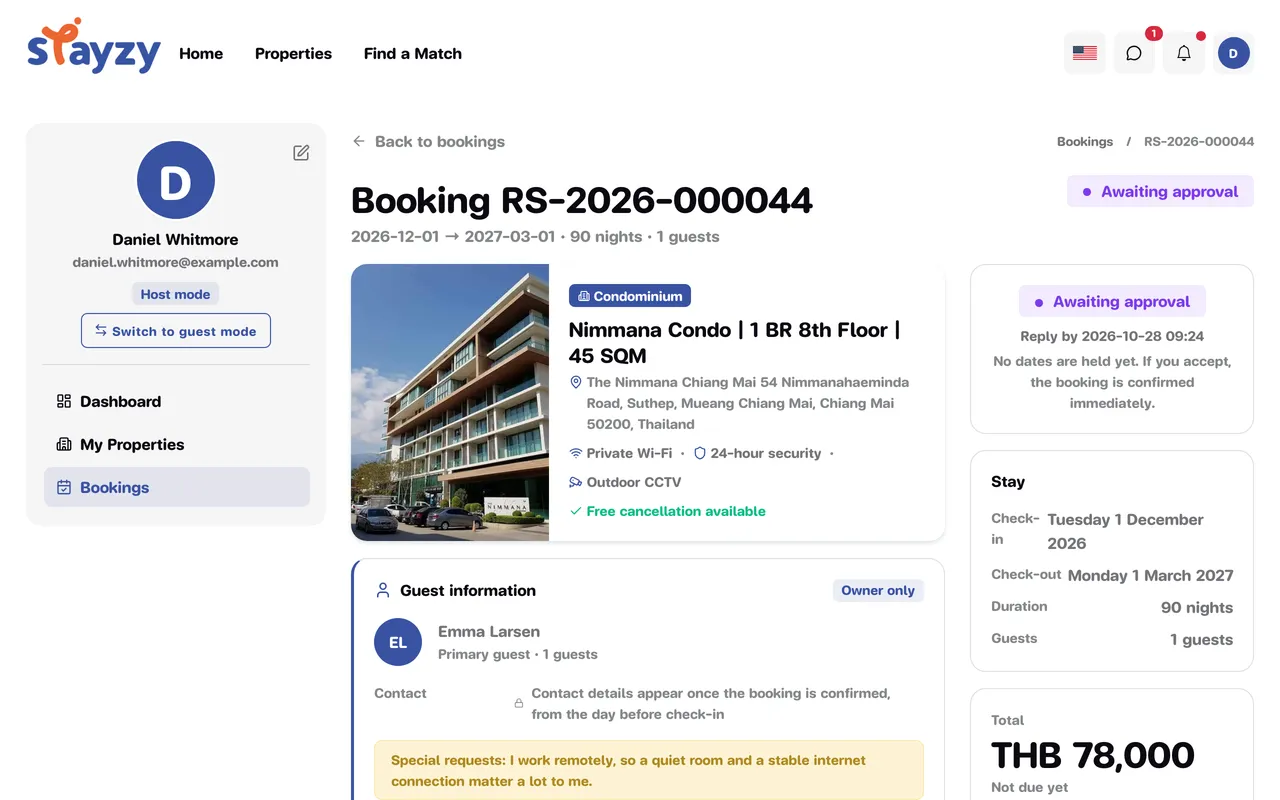
Check the guest details, dates, number of nights, number of guests and any Special requests.
The side panel shows Reply by with the date and time you need to answer by, and a note that no dates are held yet — if you accept, the booking is confirmed immediately.
-
In the Actions box, click Approve request.
-
The Approve this request? window explains that the booking is confirmed the moment you accept, and that other requests for overlapping dates will be declined automatically. Click Approve.
The status changes to Confirmed, the dates are taken on your calendar, and the guest is notified. For what comes next, see Manage confirmed bookings.
If you see “These dates were just booked”
Section titled “If you see “These dates were just booked””If another booking took those dates while the request was waiting, approving shows These dates were just booked — decline this request instead. Click Decline request and choose Dates unavailable.
Decline a request
Section titled “Decline a request”-
In the Actions box, click Decline request.
-
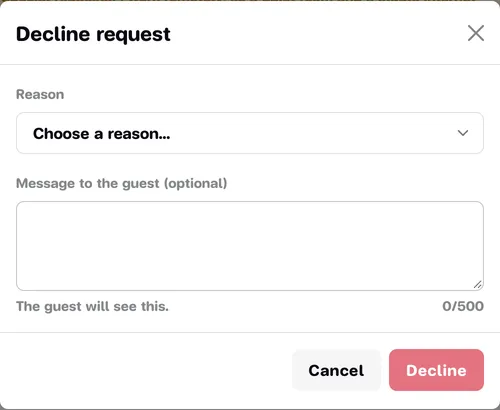
Choose a Reason:
- Dates unavailable
- Not a fit for this property
- Property not available
- Other
-
Optionally write a Message to the guest (optional), up to 500 characters. The guest will see it.
-
Click Decline.
The status changes to Declined, and the details page shows the reason you chose.
If you don’t answer in time
Section titled “If you don’t answer in time”You have 24 hours from when the guest sends the request — or until the check-in time, if that comes sooner. The exact deadline is shown under Reply by on the details page.
If the deadline passes without an answer, the request becomes Expired, the approve and decline buttons disappear, and both you and the guest are notified. The guest can send a new request if they’re still interested.